
Understanding the Dashboard

Welcome to your AlertBrew dashboard! This is your central hub for viewing, managing, and organizing all of your web monitoring agents. Let's take a quick tour of the key areas.
1. Main Navigation (Sidebar)
The sidebar on the left is your primary way to navigate between different sets of alerts.
My Alerts: This is your private area. Any alert you
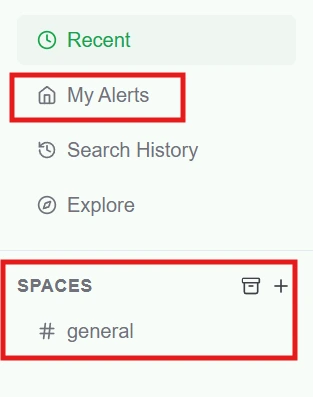 create here is visible only to you. It's perfect for personal projects or initial tests.
Spaces: Spaces are shared areas for collaboration. Any alert in a public space is visible to all workspace members. Private spaces are visible only to members you invite.
Workspace Switcher: At the very top of the sidebar, you can switch between different workspaces you belong to.2. The Main Alert Feed
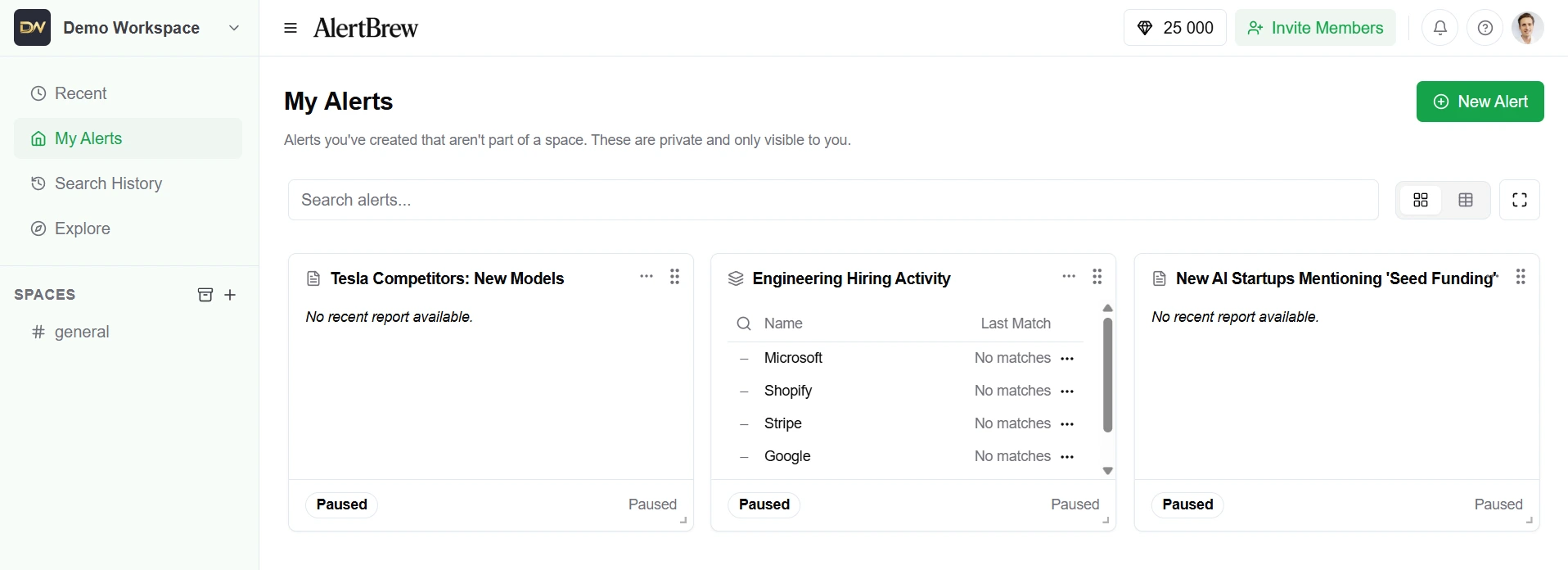
The central part of your screen is the alert feed. This area displays all the alerts for the location you've selected in the sidebar (e.g., "My Alerts" or a specific space).
By default, alerts are shown as cards in a grid, giving you a quick overview of their status and recent activity.2. The Main Alert Feed
The central part of your screen is the alert feed. This area displays all the alerts for the location you've selected in the sidebar (e.g., "My Alerts" or a specific space).
By default, alerts are shown as cards in a grid, giving you a quick overview of their status and recent activity.2. The Main Alert Feed
The central part of your screen is the alert feed. This area displays all the alerts for the location you've selected in the sidebar (e.g., "My Alerts" or a specific space).
By default, alerts are shown as cards in a grid, giving you a quick overview of their status and recent activity.
3. The Alert Card
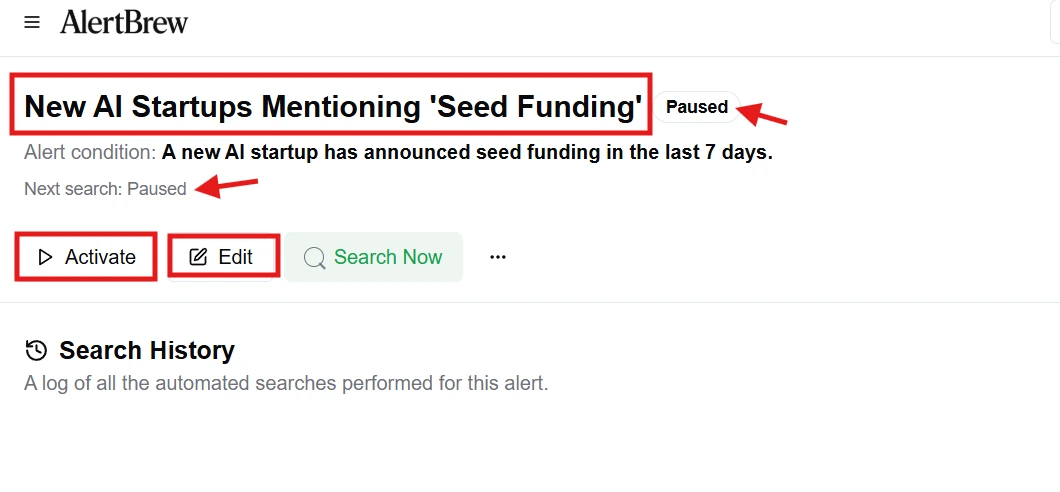
Each card represents a single alert and gives you key information at a glance.
Name: The descriptive name you gave your alert.
Status: Shows if the alert is Active, Paused, or in an Error state.
Last Match: Tells you when the last positive match was found.
Next Search: Shows when the AI agent will next run its search.
Actions: Use the buttons to Play/Pause the alert or access more options like Edit and Delete.
 4. Header Actions
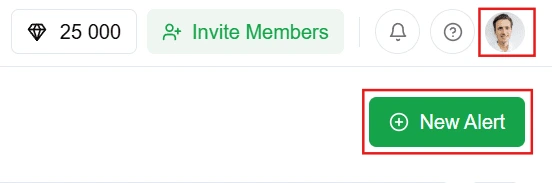
The header at the top of the page contains important global actions.
New Alert: The primary button for creating a new regular alert or alert group.
Profile Menu: Click your avatar to access workspace settings, manage billing, view your profile, or log out.
Note: As you create more alerts, consider organizing them into Spaces. This makes it much easier to manage alerts related to specific projects, teams, or clients.