
How to Work with Alert Reports

When an alert finds a match, it generates a detailed report that gives you a concise, AI-powered summary of the finding, along with links to the source. This guide breaks down the different parts of the report so you can get the most out of every triggered alert.
1. Finding Your Report
There are two primary ways to access a report for a triggered alert:
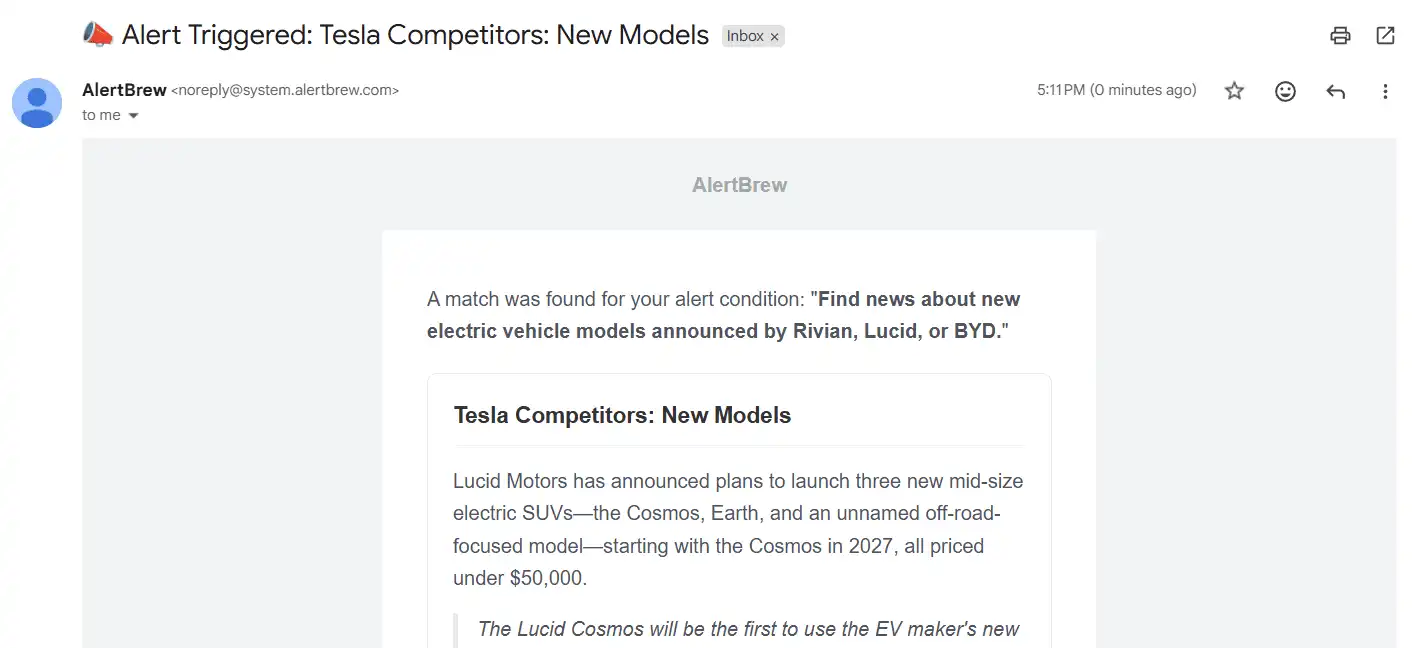
From an Email Notification: If you are a notification recipient for the alert, you'll receive an email the moment a match is found. This email contains the full AI-generated summary and a direct link to view the alert and its history in your workspace.
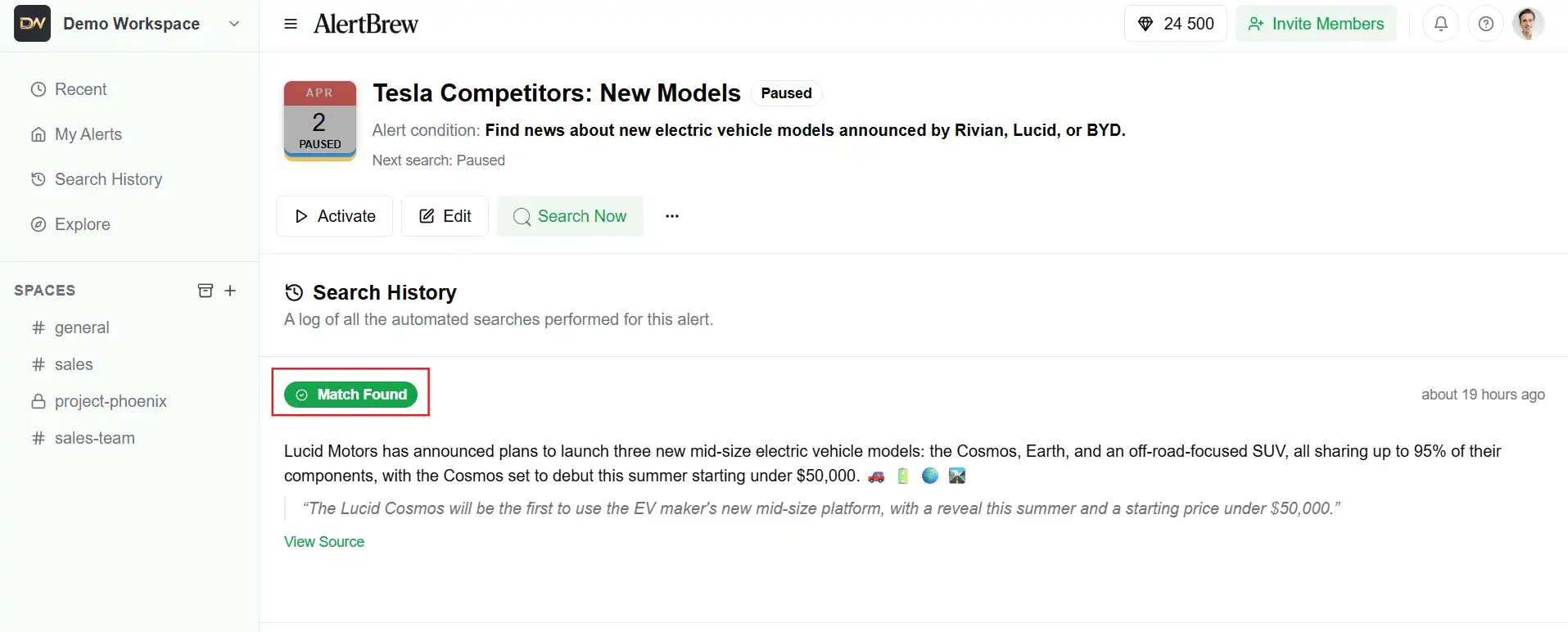
From the Search History: You can view any past report by navigating to the alert's detail page and looking at its Search History. Any entry marked with a "Match Found" badge will contain the report.
 2. Anatomy of a Report
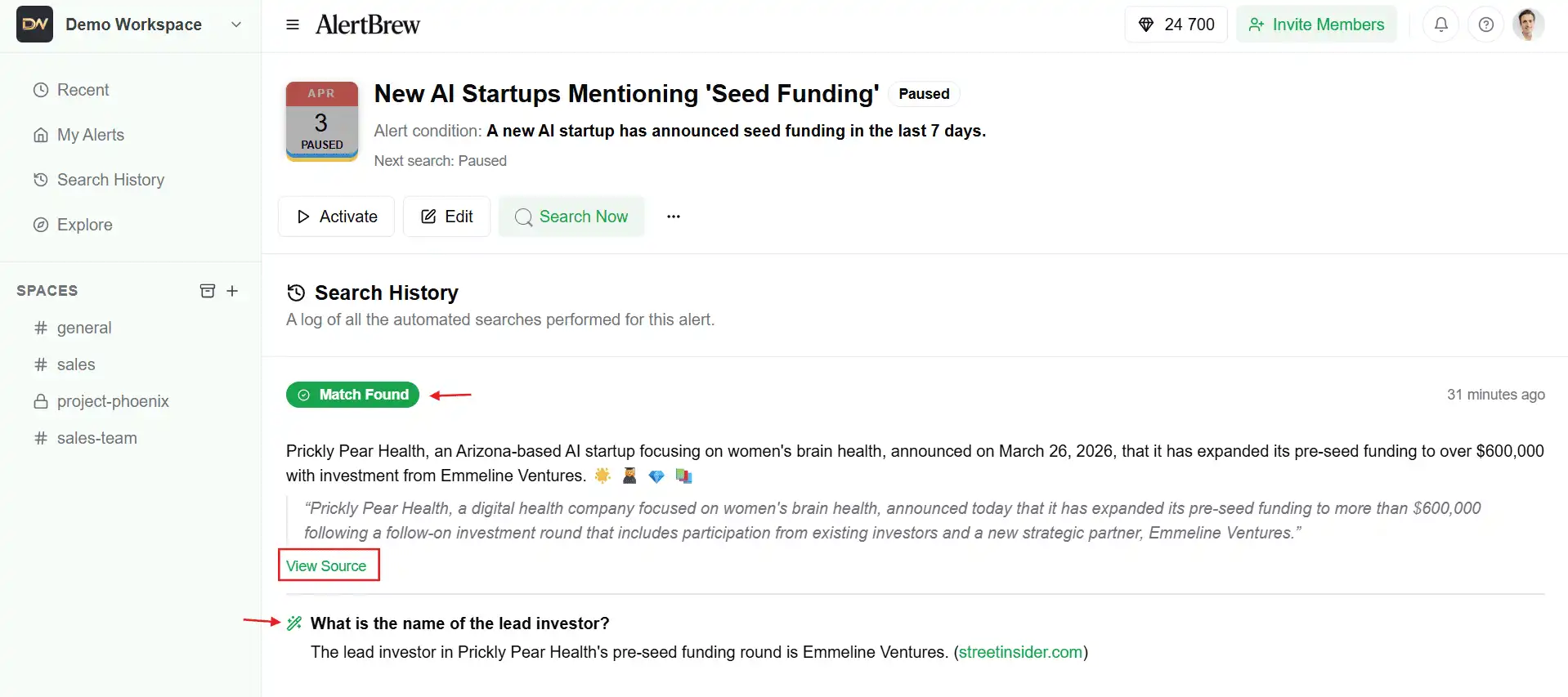
Clicking on a "Match Found" entry in the history will reveal the full report. Here are the key components:
AI Summary: This is a concise summary written by the AI, explaining what it found and why it matched your condition.
Source URL: A direct link to the article, press release, or webpage where the information was discovered. This is crucial for verifying the finding and getting more context.
Quote: A direct quote from the source that the AI identified as being most relevant to your condition. This helps you quickly see the key evidence for the match.
Custom AI Insights: If you configured any "Report Sections" in your alert, the AI-generated answers to your specific questions will appear here. This is where you can find extracted data points, sentiment analysis, or other custom information you requested.
 3. Taking Action on a Report
Once you have a report, you can:
Verify the Source: Always click the Source URL to review the original article or page for yourself.
Share with Your Team: Copy and paste the summary or the source link into Slack, email, or your internal communication tools.
Trigger CRM Actions: If your alert is connected to Pipedrive, the report summary will automatically be added as a note to the corresponding organization or person, and any configured activities will be created.
Note: The quality of the AI summary and insights is directly related to the specificity of your Alert Condition and custom prompts. The more precise your instructions, the better the report will be.