
How to Use Variables from a Custom List

Variables are the placeholders that allow you to create one dynamic alert condition that works for every item in your list. When used correctly, they unlock the full power of Custom List Alert Groups.
What are Variables?
Think of your custom list as a mini-spreadsheet. Each column represents a piece of data about your items, and the header of that column is its variable name.
For example, if you have a list of companies, your columns might be:
Company Name
Website URL
CEO Name
These become the variables {{Company Name}}, {{Website URL}}, and {{CEO Name}} that you can use in your alert condition.
How to Define Variables
Navigate to your Custom List Alert Group: Go to the edit page for your group.
Use the Grid Editor: In the "Build Your List" section, ensure you are in the Grid view.
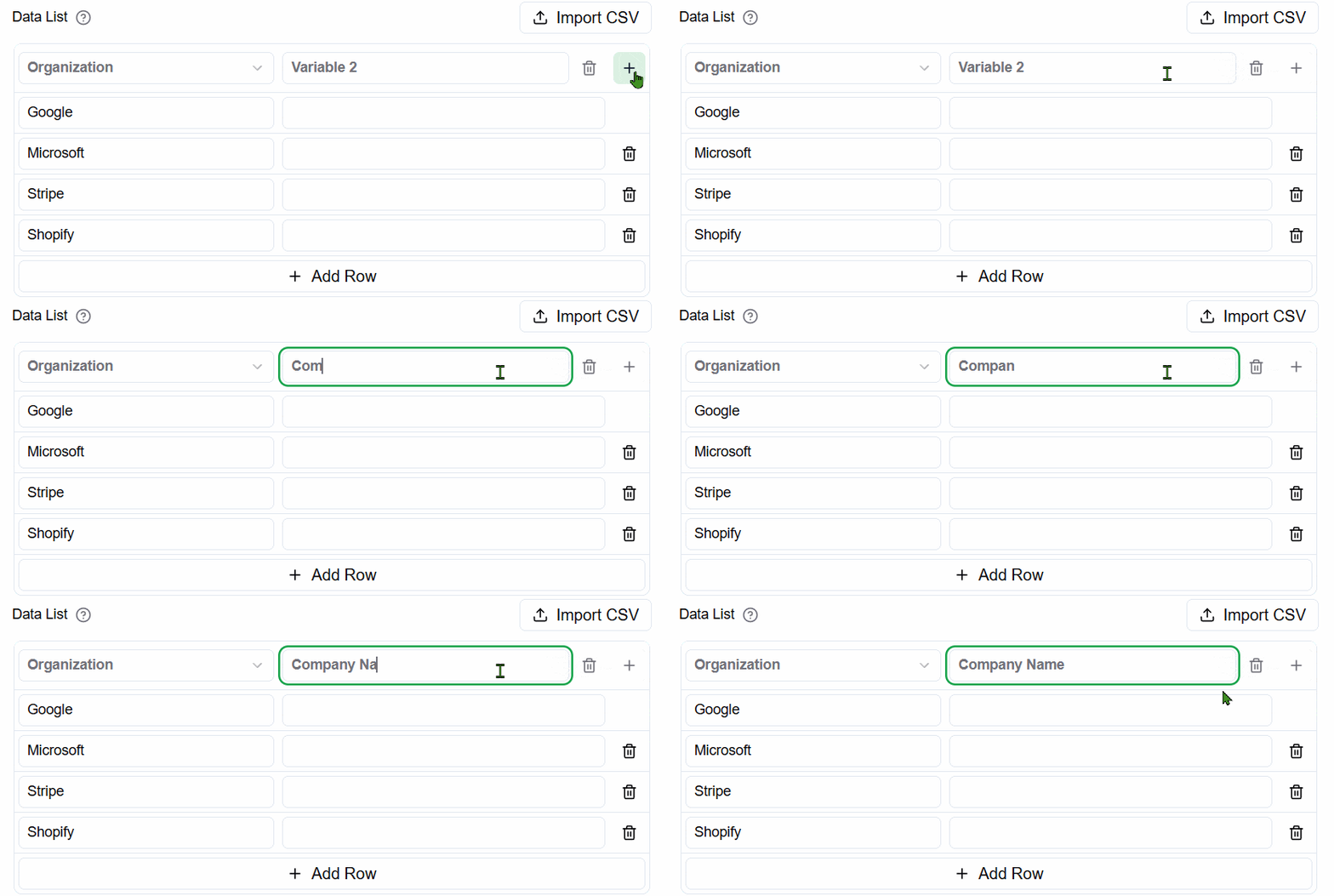
Rename Column Headers: Double-click on any column header (e.g., "Variable 1") to rename it to something descriptive. Use clear names without special characters.
 How to Use Variables in Your Condition
Go to the "Alert Condition" box.
Type the @ symbol: As you type your condition, type @ at the point where you want to insert a variable.
Select from the Dropdown: A dropdown menu will appear, showing all the variables you've defined in your list. Click on the variable you want to insert.
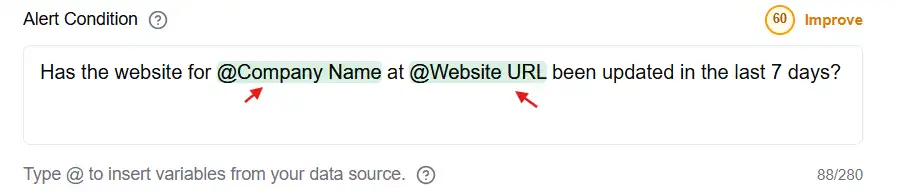
Example Condition: "Has the website for @Company Name at @Website URL been updated in the last 7 days?"
How It All Works
When the alert group runs its search, it doesn't just do one search. It creates a separate, individual search for each row in your list.
For each row, it takes your alert condition and replaces the variables with the actual data from that specific row.For Row 1 (Acme Inc., acme.com), the AI will evaluate: "Has the website for Acme Inc. at acme.com been updated in the last 7 days?"
For Row 2 (Stark Industries, starkindustries.com), the AI will evaluate: "Has the website for Stark Industries at starkindustries.com been updated in the last 7 days?"
This allows you to monitor hundreds or thousands of unique entities using a single, easy-to-manage template.