
How to Use Custom Report Sections

Custom AI Insights, or "Report Sections," allow you to ask the AI specific questions when it finds a match. This powerful feature transforms a simple notification into a structured report by extracting the exact data points you need.
How It Works
When you add a custom insight, you're giving the AI a direct instruction: "When you confirm a match for my condition, find and answer this specific question based on the source material." This goes beyond the general summary, allowing you to pull out names, dates, amounts, or any other specific piece of information.
1. Locate the Report Sections Area
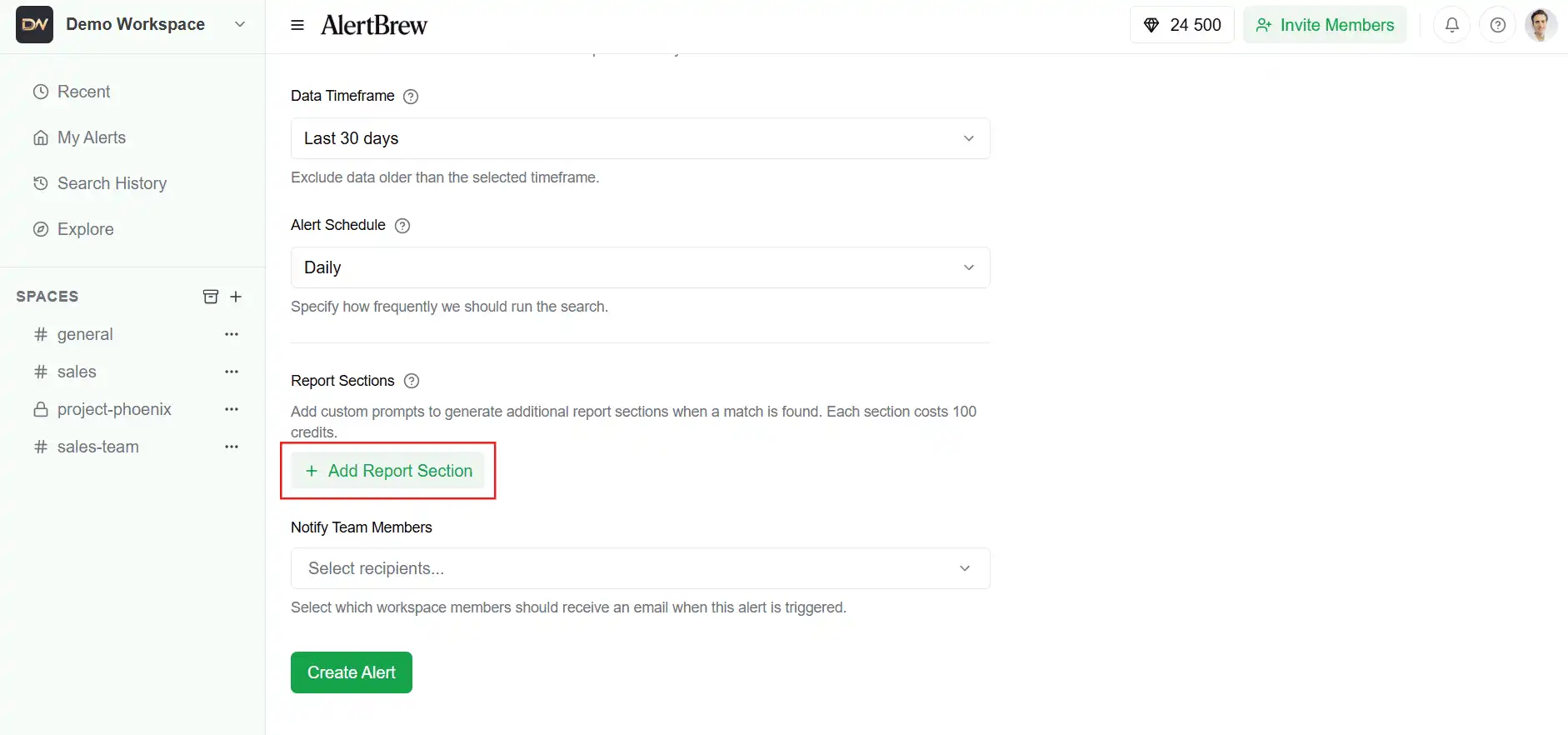
In the alert creation or editing form, scroll down below the main "Alert Condition" and "Schedule" settings. You will find a section labeled "Report Sections"
 2. Add Your First Insight
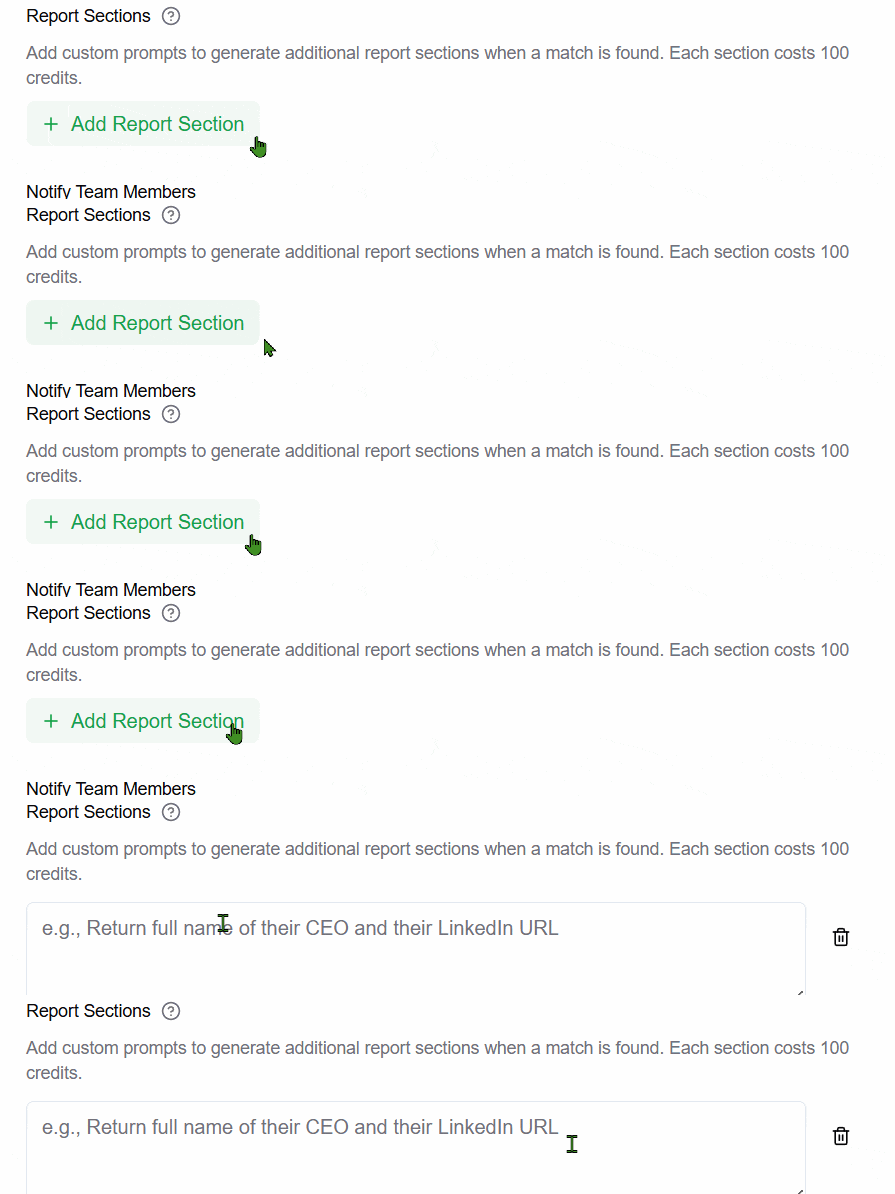
Click the "Add Report Section" button.
A new text box will appear.
In this box, type a clear, direct question that you want the AI to answer.
 3. Write Effective Questions
The quality of the AI's answer depends entirely on the quality of your question. Be specific and unambiguous.
Good: "What is the name of the lead investor in this funding round?"
Vague: "Who invested?"
Good: "What is the total amount of funding announced, in USD?"
Vague: "How much money?"
Good: "Identify the specific new feature that was launched."
Vague: "What's new?"
4. Add Multiple Insights
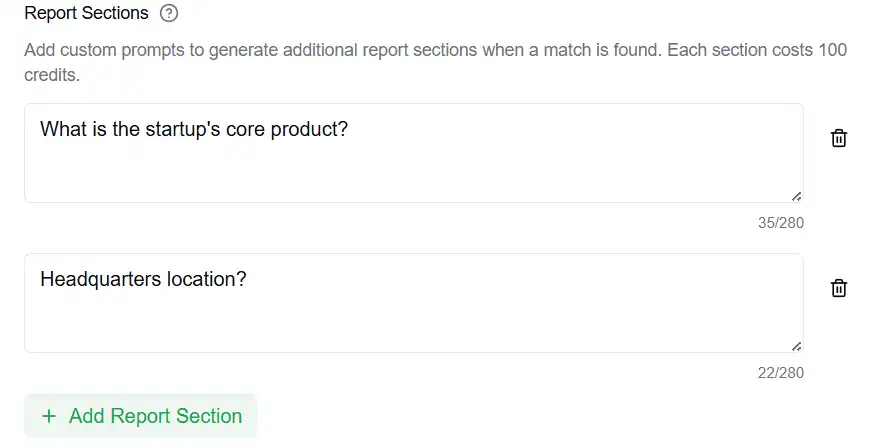
You can add several report sections to build a comprehensive report. Simply click "Add Report Section" again for each new data point you want to extract.
 5. Viewing Your Custom Insights
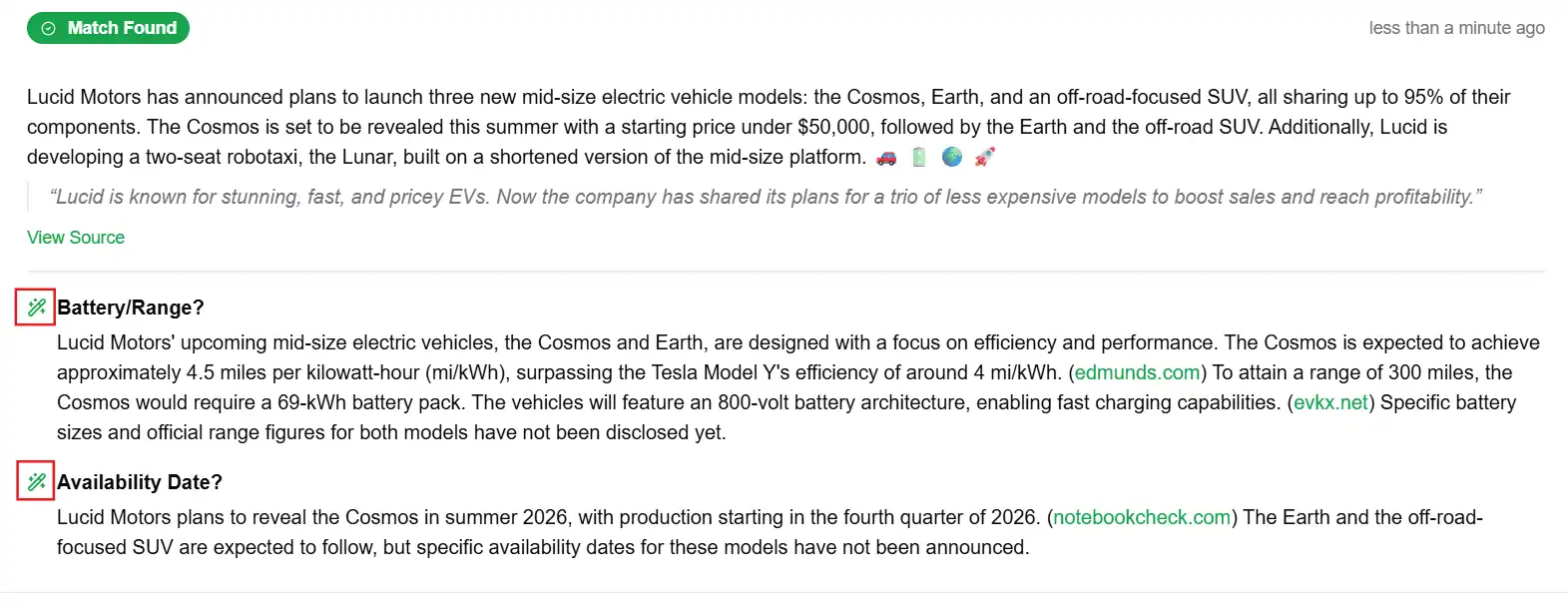
When your alert is triggered, the answers to your questions will appear in their own clearly labeled sections within the alert report.
In Email Notifications: The insights will be listed below the main AI summary.
In Search History: The insights will appear in the detailed report view for any "Match Found" entry.
 Note: Each custom insight you add consumes additional credits when a match is found and the report is generated. Use them to extract high-value information that saves you manual research time.