
How to Use Alert Templates

Alert templates are pre-built monitoring configurations created by the AlertBrew community. They are a fantastic way to get started quickly with proven, effective alerts for common use cases.
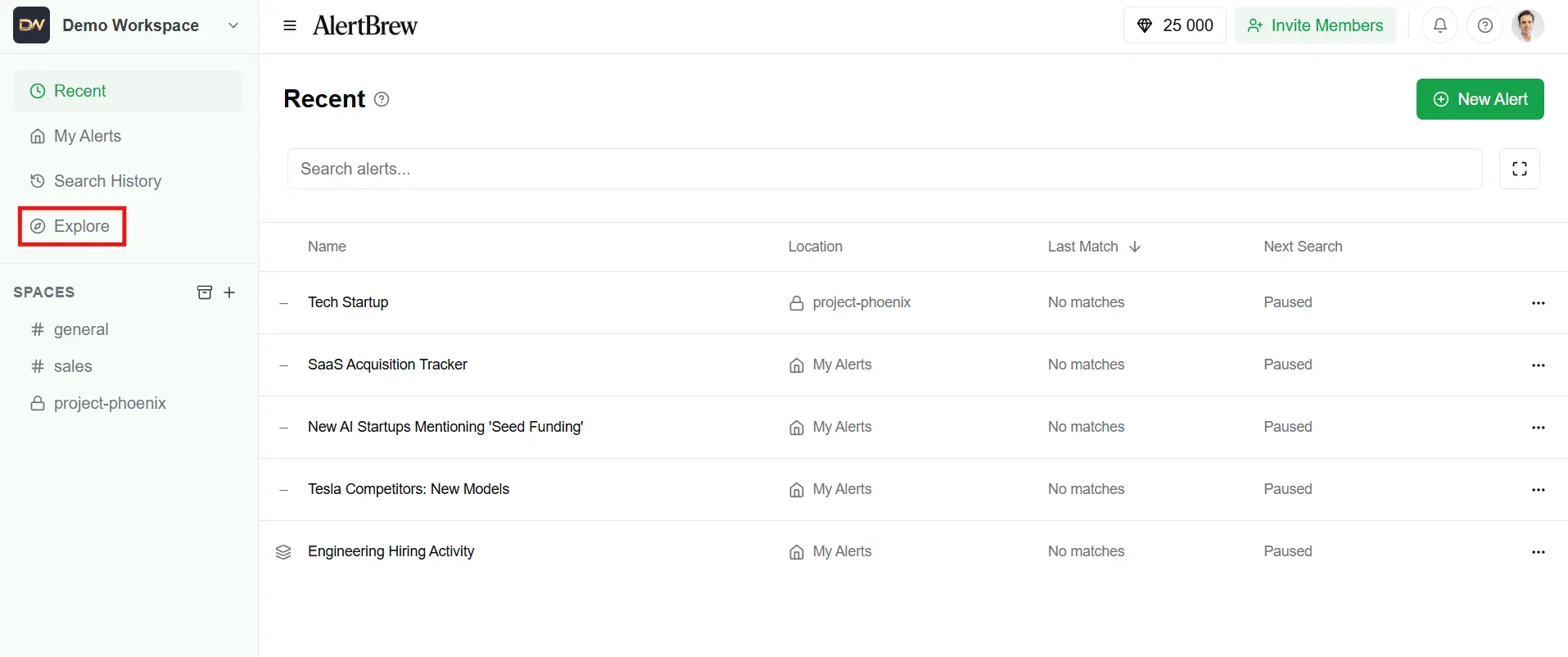
1. Go to the Explore Page
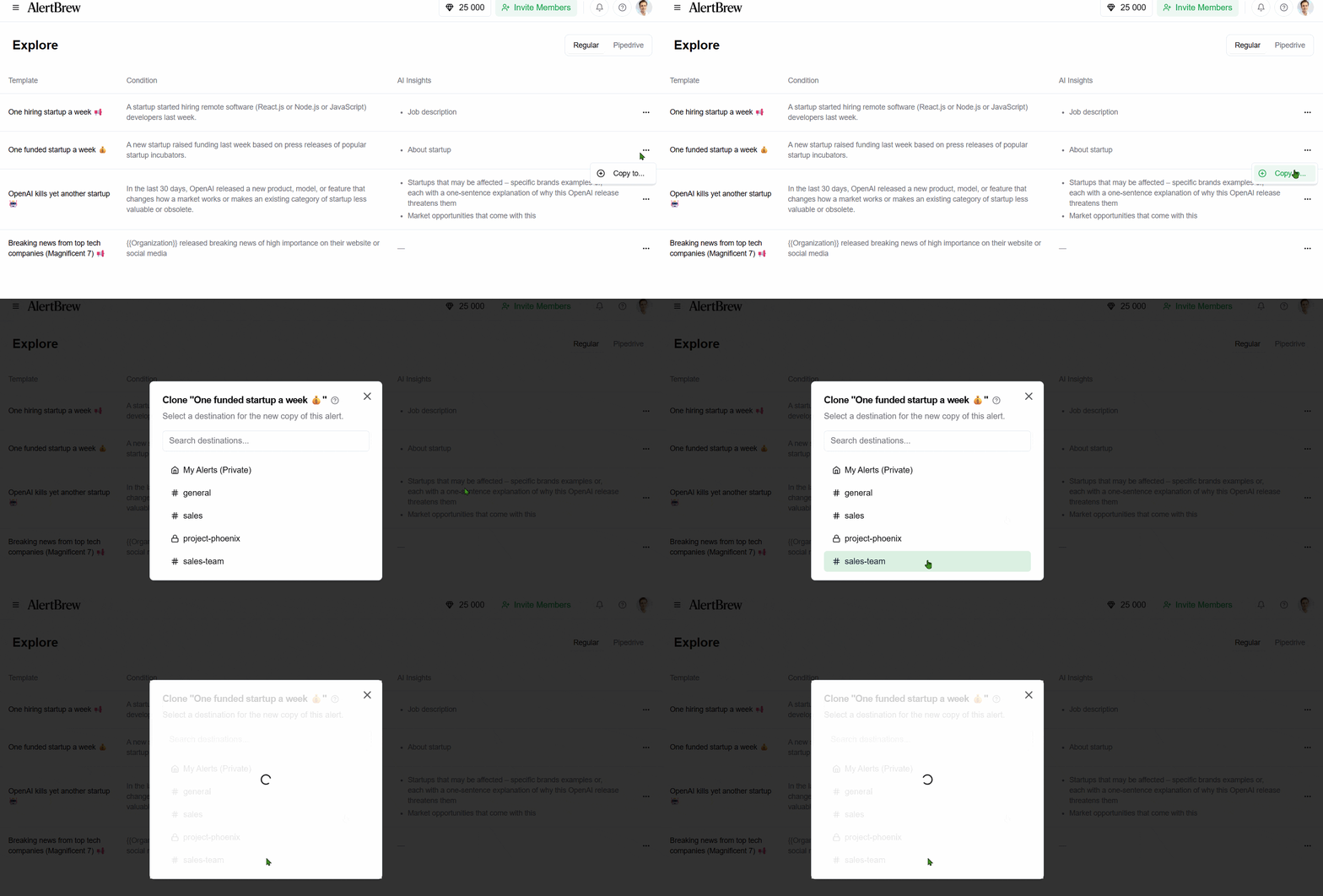
In the main sidebar, click on Explore. This is where all public community content, including alert templates, is located.
 2. Browse Available Templates
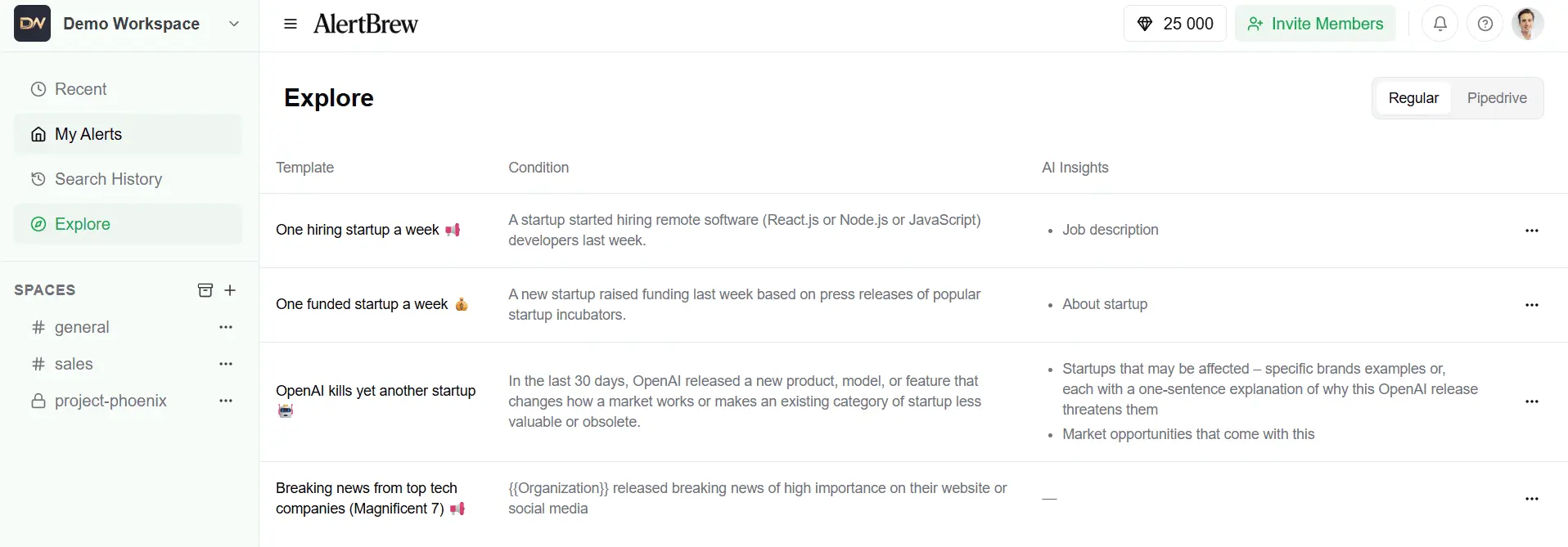
On the Explore page, you'll see a gallery of available alert templates. You can browse through them to find ones that match your monitoring needs.
 3. Click to View Details
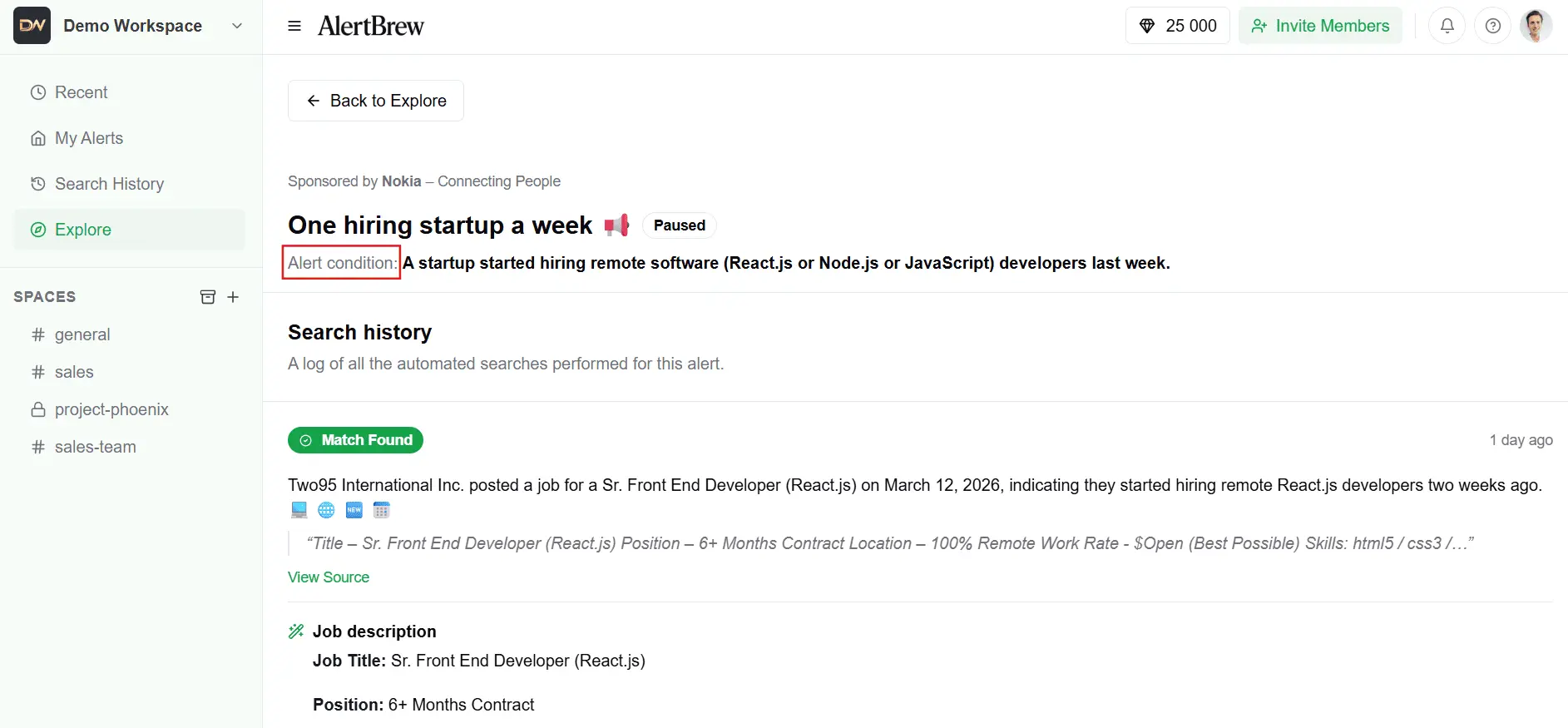
Click on any template card to see its full details. This will open a preview showing you:
The full Alert Condition.
Any pre-configured Custom AI Insights (Report Sections).
The default Schedule and Search Timeframe.
 4. Copy the Template to Your Workspace
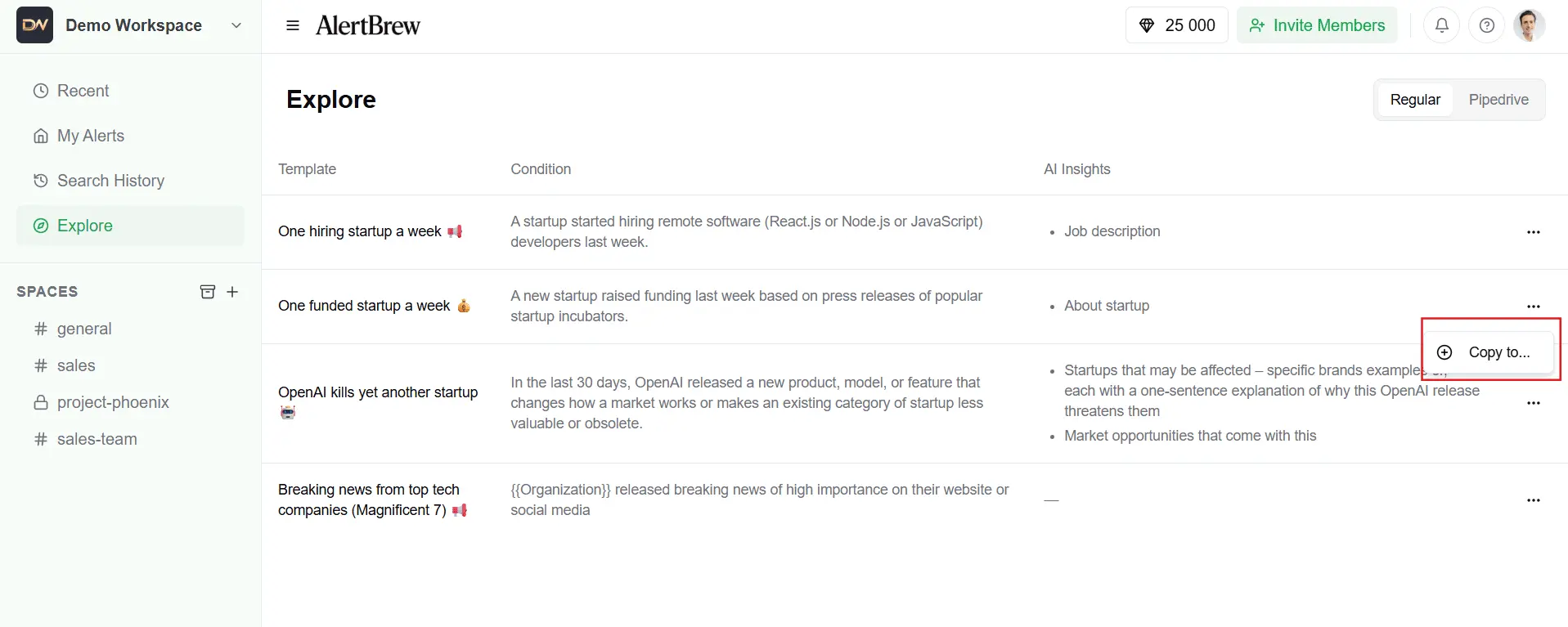
If you like the template, click the "Copy to..." button. This will open a dialog asking you where you want to save your new alert.
 5. Choose a Destination
You can save the new alert in your private My Alerts area or in any Space you belong to. Select your desired destination from the list.
 6. Customize and Activate
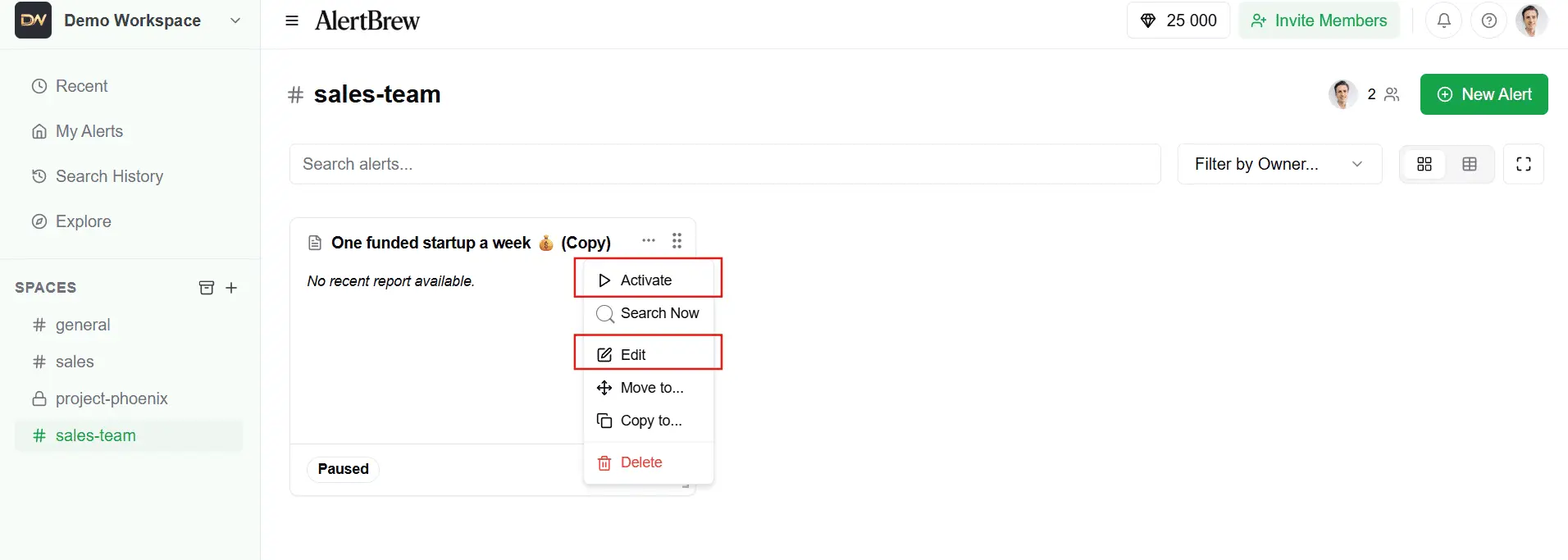
The template is now copied as a new, independent alert in your chosen location. The new alert will be paused by default.
You can now Edit the alert to customize the condition or add your own insights.
Click the Activate button on the alert card to activate it and start monitoring.
 Note: Think of templates as a starting point. Feel free to tweak the condition, change the schedule, or add different AI insights to perfectly match your specific needs.