
How to Update Your Profile and Notification Settings

This guide explains how to manage your personal information within a workspace, including your name, avatar, and email notification preferences.
1. Go to Your Profile Page
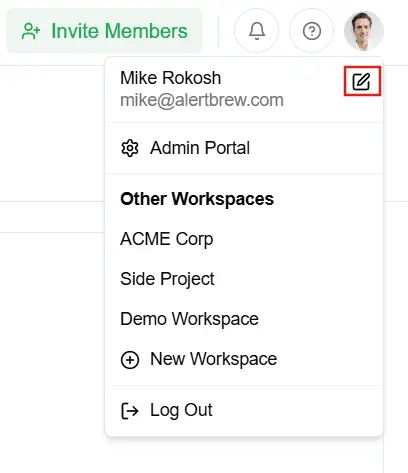 Click on your profile icon in the top-right corner of the dashboard.
From the dropdown menu, select "My Profile".
2. Update Your Personal Information
On your profile page, you can modify the following details:
Avatar: Click "Upload New Icon" to choose a new profile picture.
Full Name: Change the name that is displayed to other team members.
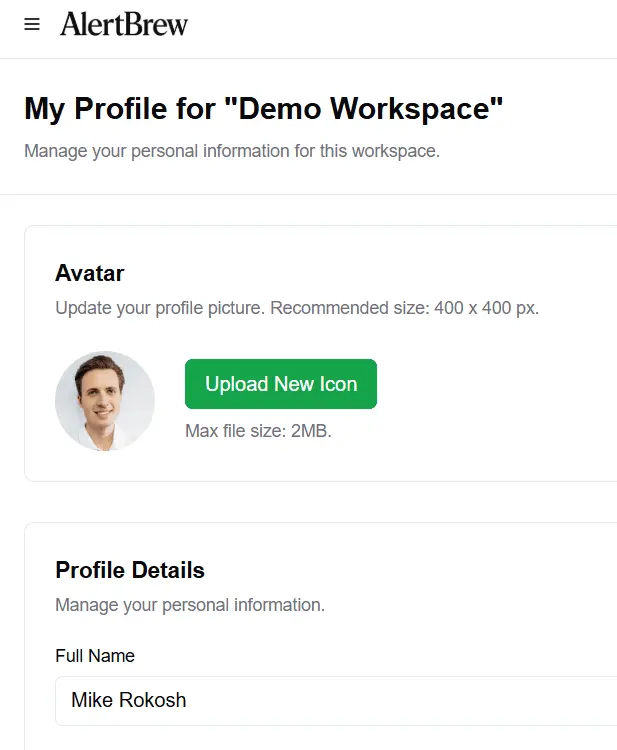 After making your changes, click the "Save Changes" button to apply them.
3. Manage Notification Settings
Below your personal information, you'll find the "Notification Settings" section. Here you can control which emails you receive from AlertBrew.
Alert Emails: Toggle this switch to enable or disable email notifications for alerts that you are a recipient of. When on, you'll receive an email every time one of your alerts finds a match.
Tips & Updates: Toggle this switch to manage your subscription to our general product updates, helpful tips, and occasional promotional offers.
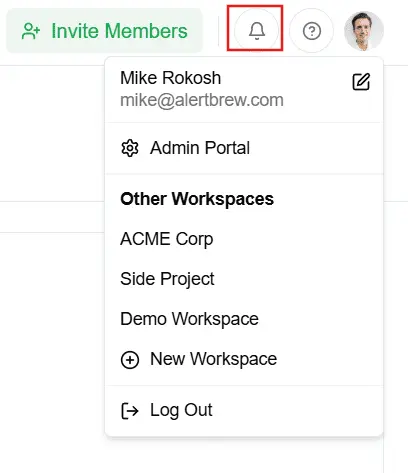 Changes to these settings are saved automatically.
Note: Your profile settings (name, avatar, and alert email preferences) are specific to each workspace. If you are a member of multiple workspaces, you can configure different settings for each one. Your "Tips & Updates" preference is global and applies across all workspaces.