
How to Understand Your Search History

Every time an alert runs—either on its schedule or through a manual search—it creates a log entry. This history is your key to understanding the AI's "thinking" and refining your alerts for better accuracy.
1. Accessing the Search History
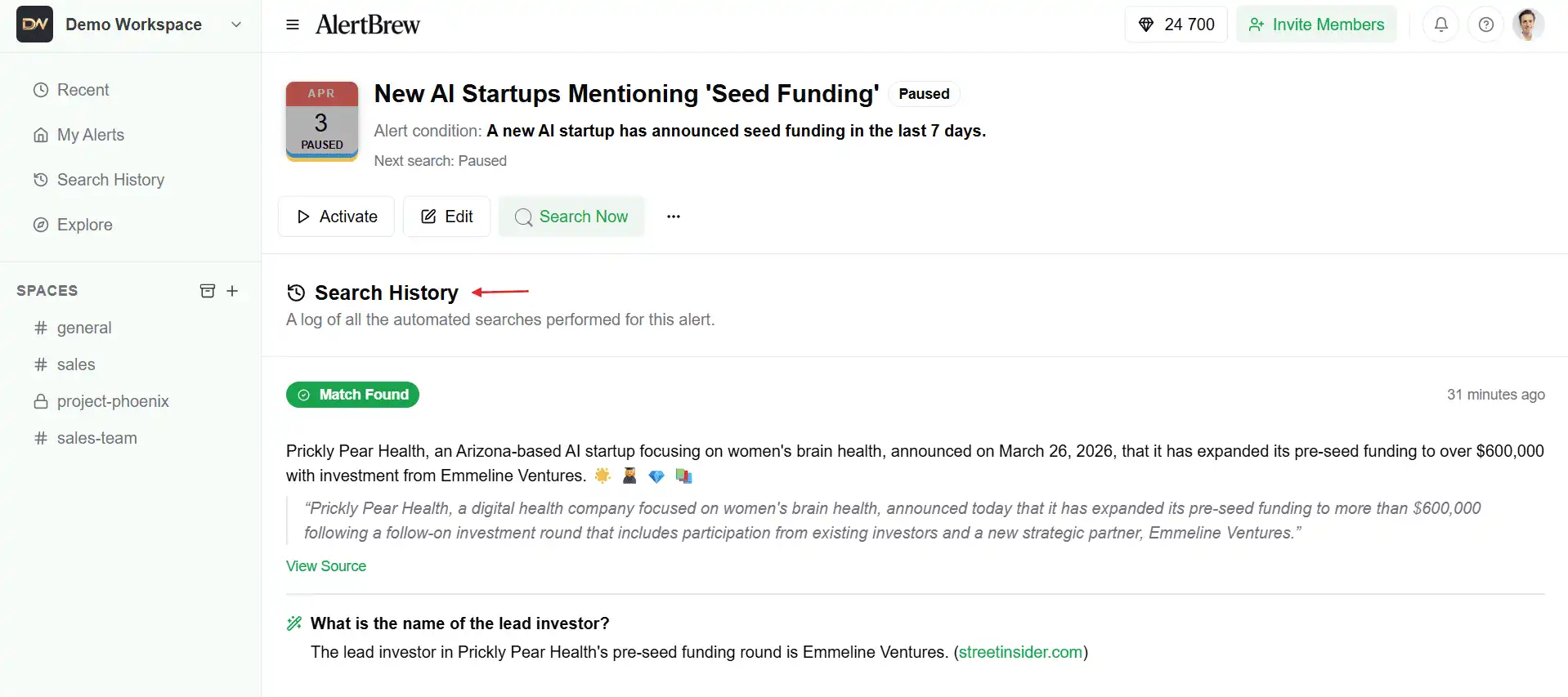
The search history is available on the detail page for every individual alert.
Navigate to the alert you want to inspect by clicking on its card from your dashboard or a space.
Scroll down below the main alert details. You will find the "Search History" section.
 2. Reading a History Entry
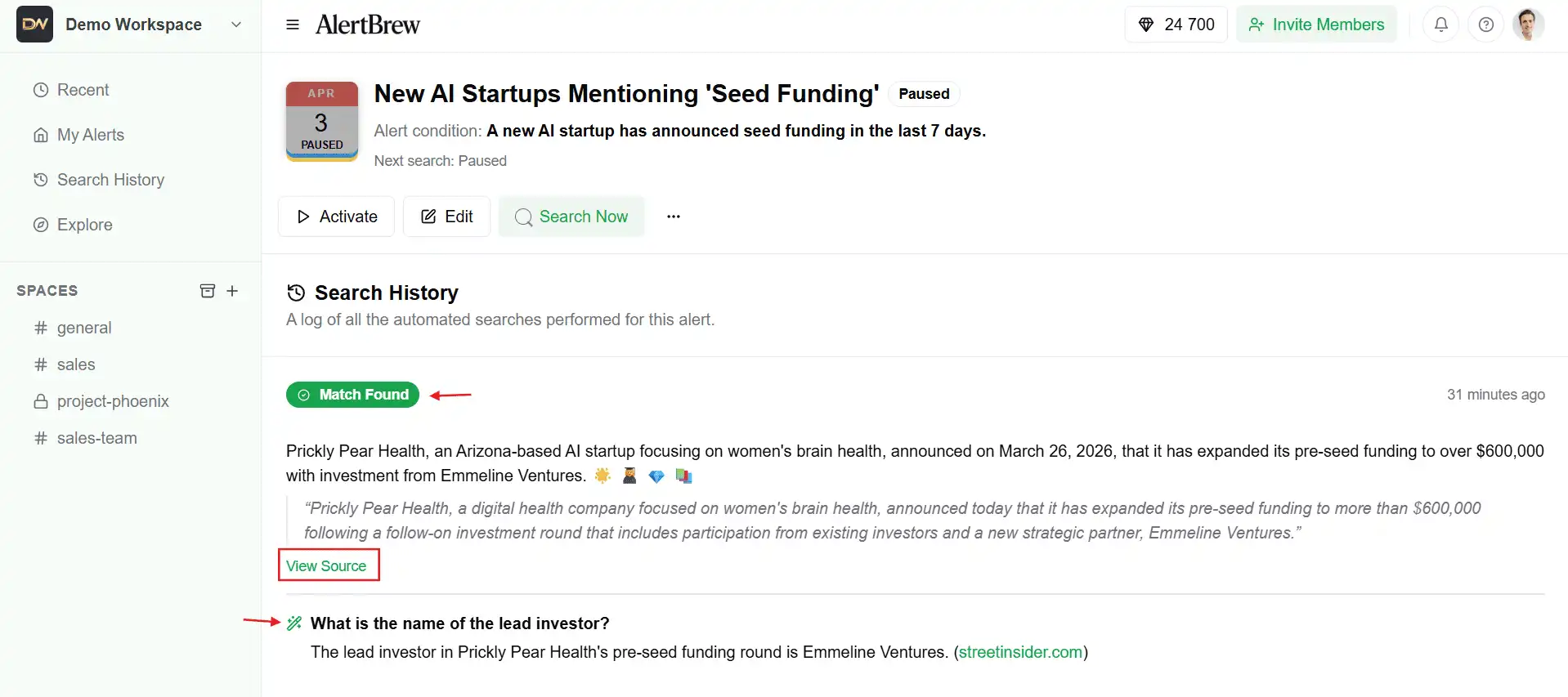
Each entry in the log gives you a snapshot of a single search run.
Timestamp: Shows exactly when the search was performed.
Status Badge:
Match Found: The AI determined that your condition was met.
No Match: The AI did not find anything that satisfied your condition.
Summary: This is the most important part.
For a match, it shows the AI-generated summary of the finding.
For no match, it provides the AI's reasoning for why the condition was not met. This is crucial for debugging.
Source: If a match was found, a link to the source URL will be provided.
 A Note on Improving Accuracy
The best way to improve an alert that isn't working as expected is to review the "No Match" summaries in its search history. The AI's reasoning will often tell you exactly what needs to be changed in your alert condition to make it more precise.