
How to Publish Alerts to the Community

Sharing your most effective alerts with the AlertBrew community is a great way to help others, build your reputation, and even earn rewards through our sponsorship program. This guide explains how to submit one of your alerts to be published on the public "Explore" page.
Why Publish an Alert?
Help Others: Share your expertise and help other users discover valuable signals.
Build Your Brand: Public alerts can be sponsored, allowing you to showcase your brand to the community.
Earn Rewards: Sponsored alerts can earn you credit bonuses or other rewards.
1. Go to the Alert You Want to Publish
Navigate to the alert on your dashboard. You can publish alerts from "My Alerts" or any space you belong to.
2. Open the "Publish & Advertise" Option
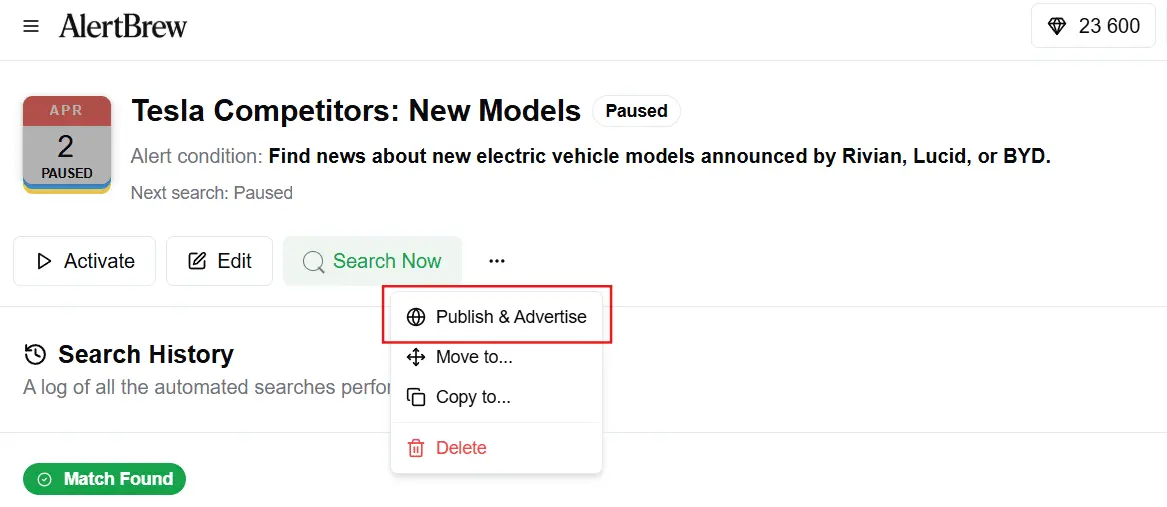
Click the three-dot menu on the alert card to open more options.
Select "Publish & Advertise".
 3. Add Optional Sponsorship Details
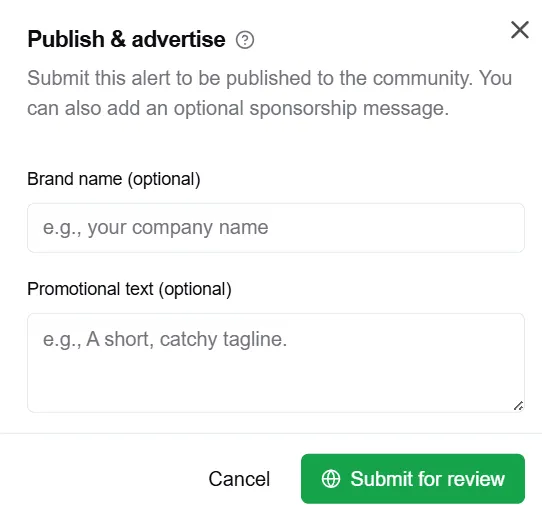
A dialog will appear. Here, you can add sponsorship information that will be displayed with your alert if it is approved. This is completely optional.
Brand Name: The name of your company or brand.
Promotional Text: A short, one-line message (e.g., "The leading provider of AI-powered sales tools.").
 4. Submit for Review
Click the "Submit for Review" button.
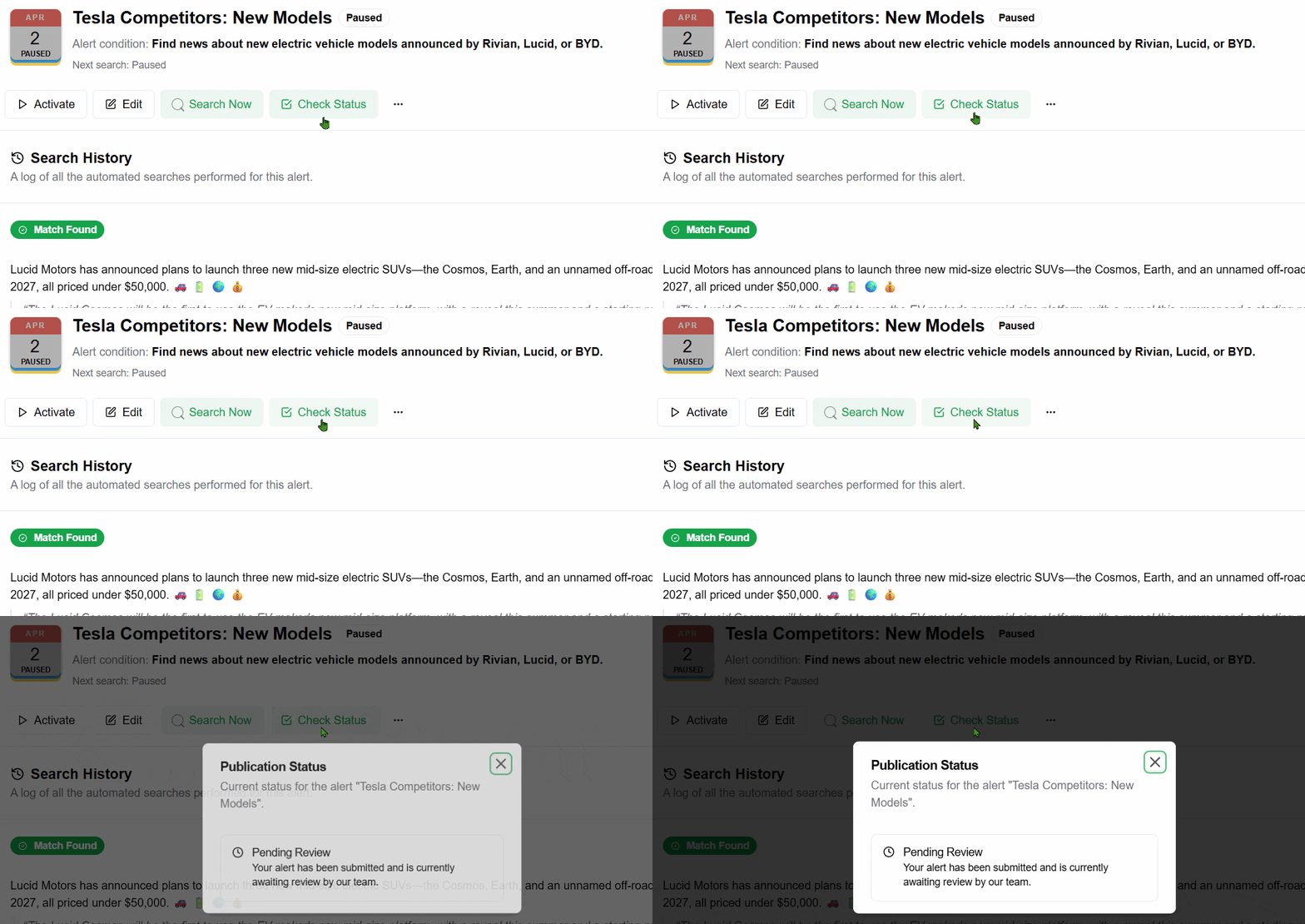
Your alert's status will change to "Pending," and our team will review it for quality, clarity, and usefulness.
The Review Process
Our team checks every submission to ensure it provides value to the community. We look for:
A clear and unambiguous alert condition.
A descriptive name.
Relevance to a broad audience.
You can check the status of your submission at any time by opening the "Check Status" option from the alert's menu. If your alert is rejected, we will provide a reason to help you improve it for re-submission.
 Note: Once an alert is published, its core condition cannot be edited to ensure consistency for all subscribers. You can, however, unpublish it at any time.