
How to Manage Workspace Settings

This guide covers how to update your workspace's general information, such as its name, URL slug, and icon. These settings can only be changed by a workspace Owner or Admin.
1. Go to Your Workspace Admin Portal
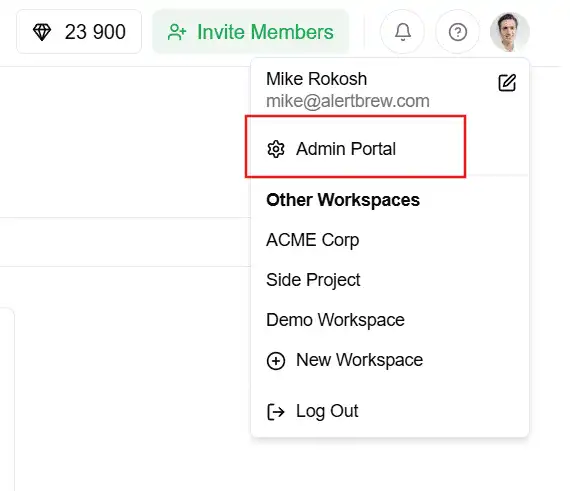 Click on your profile icon in the top-right corner of the dashboard.
Select "Admin portal" from the dropdown menu.
2. Navigate to General Settings
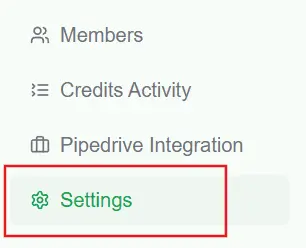
In the admin portal sidebar, click on "Settings". This is the page where you can manage your workspace's core details.
 3. Update Your Workspace Details
On this page, you can modify the following:
Workspace Icon: Click "Upload New Icon" to upload a new logo for your workspace. We recommend a square image (e.g., 200x200px).
Workspace Name: Change the display name of your workspace.
URL Slug: Update the unique slug used in your workspace's URL (e.g., alertbrew.com/w/your-slug).
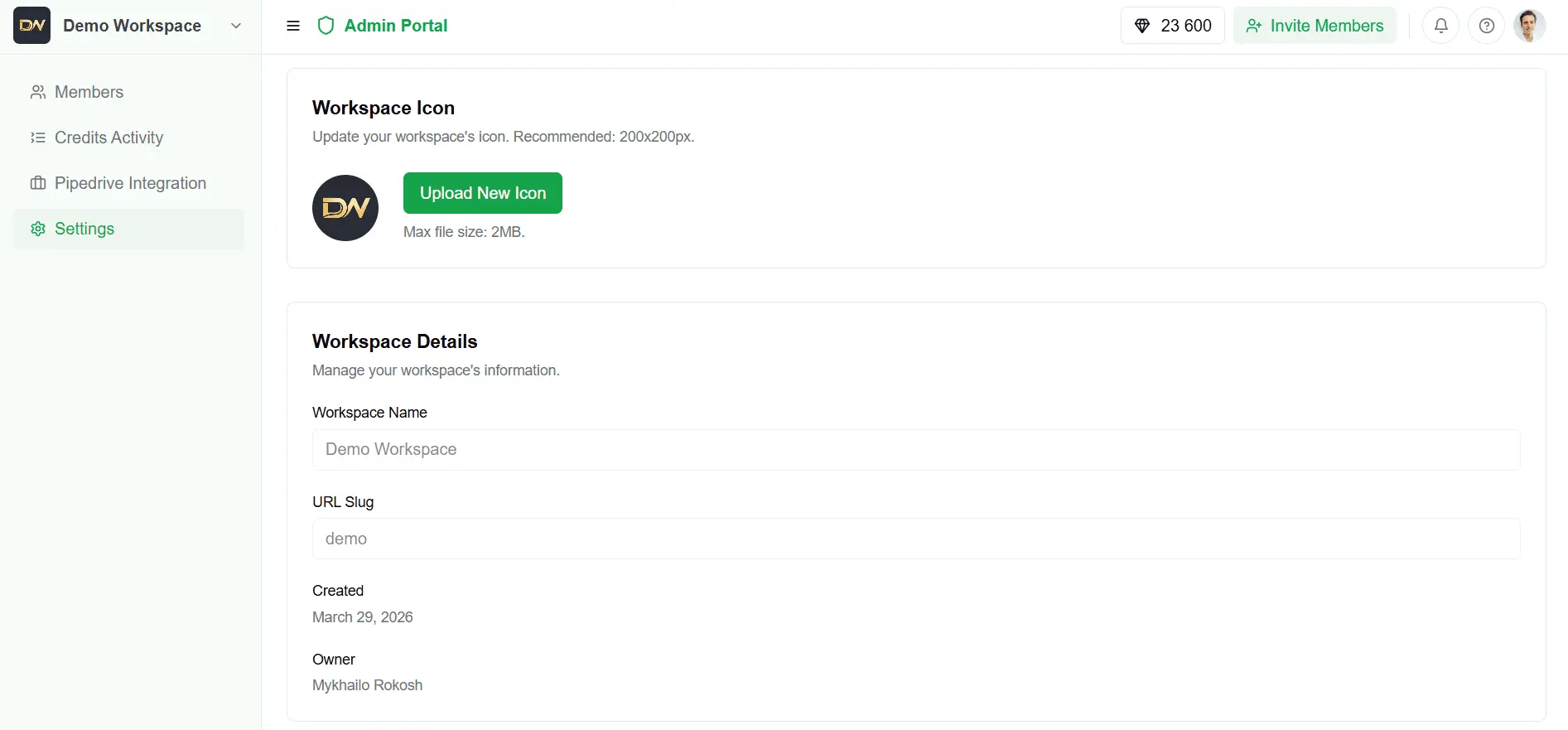 After making your changes, click the "Save Changes" button to apply them.
Note: If you change the URL slug, the old URL will no longer work. Be sure to inform your team members of the new URL.