
How to Invite and Manage Team Members

Collaborating with your team is central to AlertBrew. This guide explains how to add new members to your workspace, manage their roles, and remove them if necessary. These actions can only be performed by workspace Owners and Admins.]
1. Go to the Admin Portal
Click on your profile icon in the top-right corner of the dashboard.
Select "Admin portal" from the dropdown menu.
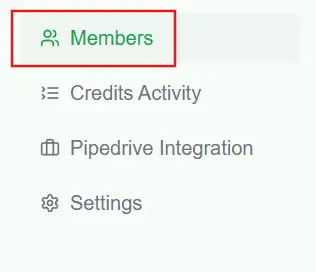
In the admin portal sidebar, click on "Members".
 2. Inviting a New Member
On the Members page, click the "Invite Members" button.
A dialog will appear. Enter the email address of the person you want to invite.
Choose their role:
Admin: Can manage workspace settings, billing, members, and all spaces.
Member: Can create and manage alerts within the spaces they have access to. Cannot access admin settings.
Click "Send Invite".
An invitation email will be sent to the user. They will appear in your member list with a "Pending" status until they accept the invitation.
 3. Managing Member Roles
You can change a member's role at any time.
Find the member in the list.
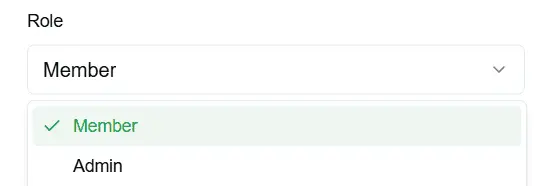
Click the role dropdown next to their name (e.g., "Member").
Select the new role ("Admin" or "Member") from the list. The change is saved automatically.
Note: You cannot change the role of the workspace Owner.
 4. Removing a Member
If a team member no longer needs access, you can remove them from the workspace.
Find the member in the list.
Click the three-dot menu on the right side of their row.
Select "Remove Member".
A confirmation dialog will appear. Click "Remove" to confirm.
This will immediately revoke their access to the workspace and all its contents.
Note: The workspace Owner cannot be removed. To remove the owner, ownership must first be transferred to another member.