
How to Create a Pipedrive Alert Group

A Pipedrive Alert Group allows you to monitor a dynamic list of organizations or people directly from your Pipedrive CRM. Instead of creating one alert for each company, you create one group based on a Pipedrive filter, and AlertBrew handles the rest.
1. Go to an Alerting Space
Navigate to "My Alerts" or any other Space where you want to create the alert group.
2. Start a New Alert Group
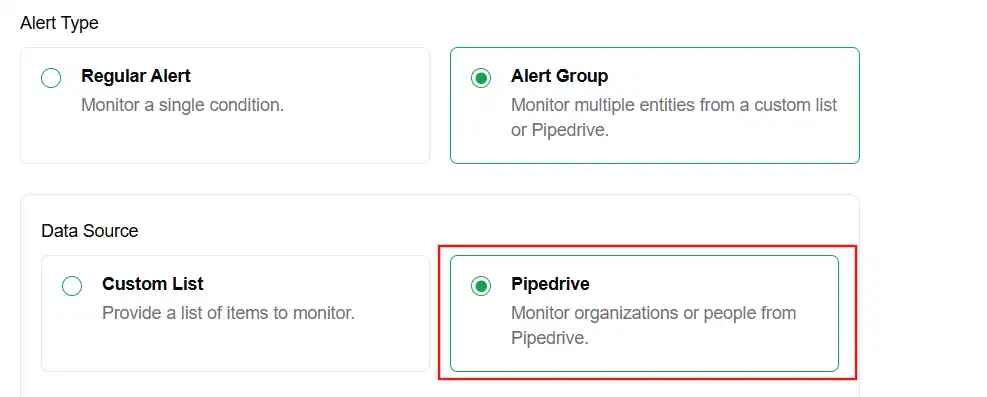
Click the "New Alert" button and select "New Alert Group" from the dropdown. Then, choose "Pipedrive" as the source.
 3. Name Your Group
Give your alert group a descriptive name, like "High-Priority Leads" or "Active US-based Clients".
4. Select a Pipedrive Filter
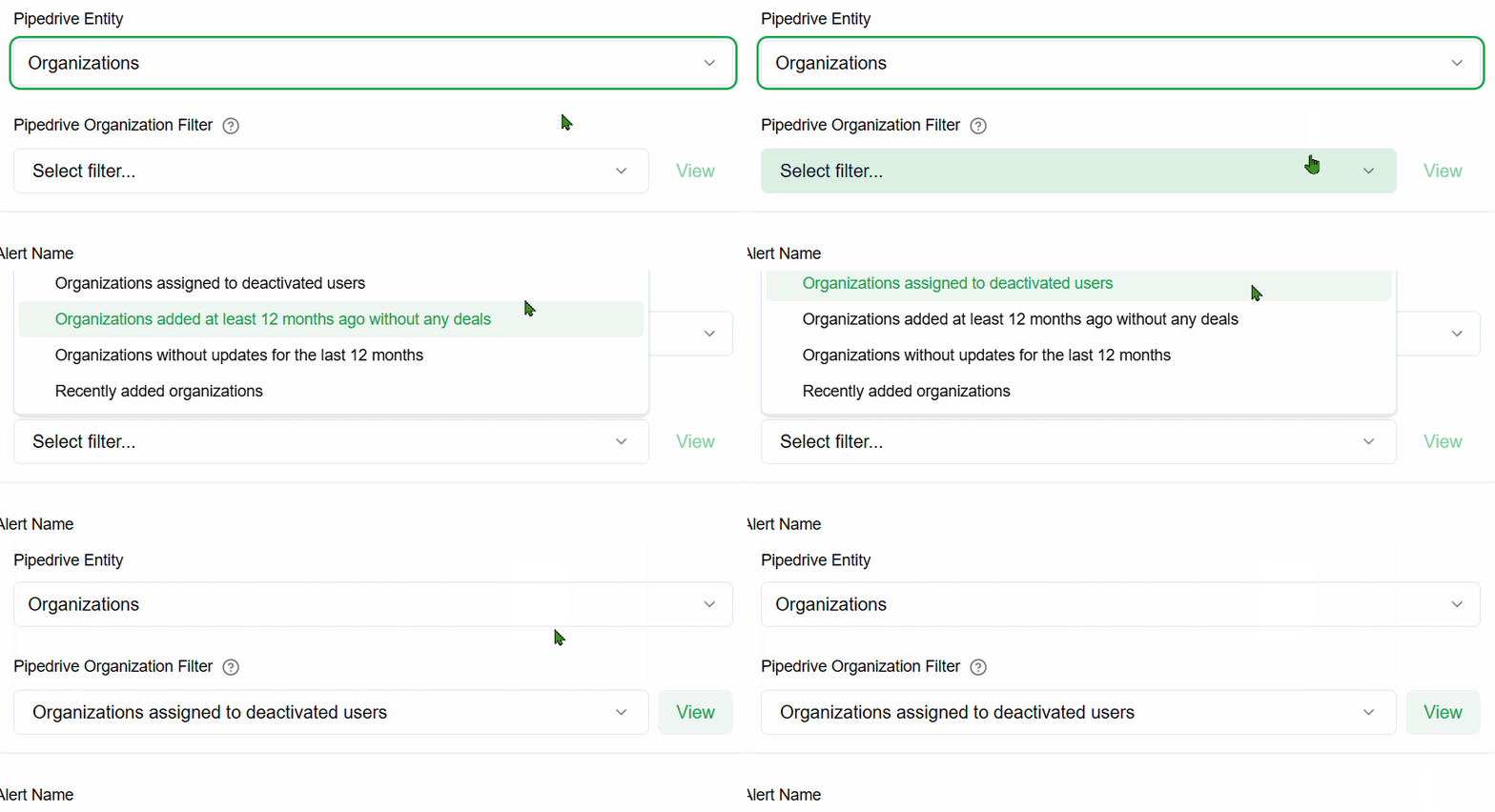
First, choose whether you want to monitor Organizations or People.
Then, select one of your saved Pipedrive filters from the dropdown menu. AlertBrew will automatically fetch and display all your available filters.
 5. Write Your Alert Condition
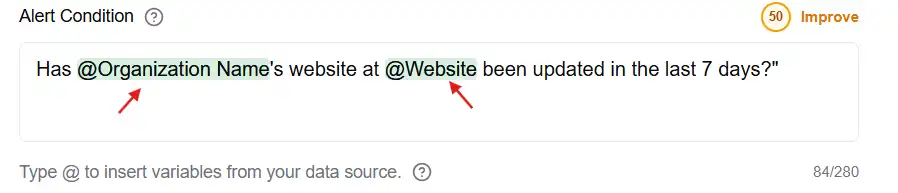
Write the condition you want to check for each entity in your filter. Use Pipedrive variables by typing @ to bring up a list of available fields (like {{Organization Name}} or {{Website}}).
Example: "Has {{Organization Name}}'s website at {{Website}} been updated in the last 7 days?"
 6. Configure Actions (Optional)
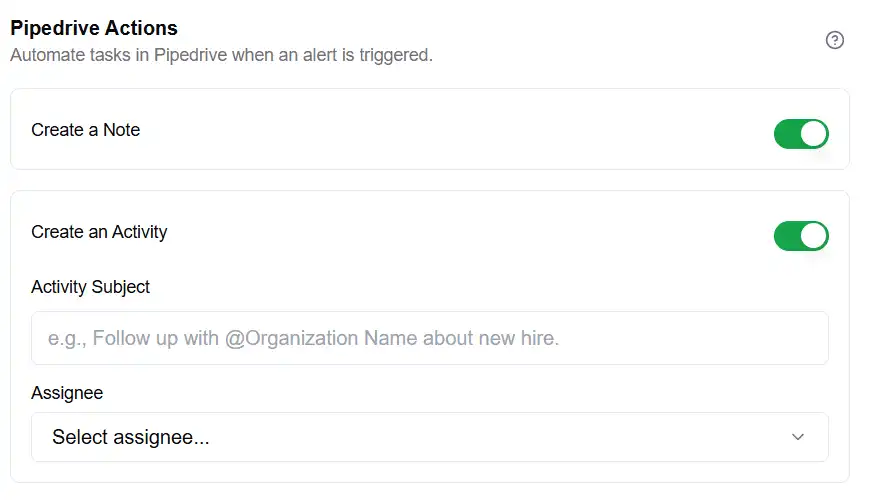
You can set up automated actions in Pipedrive when a match is found.
Create a Note: Automatically adds the AI-generated report as a note to the corresponding Pipedrive organization/person.
Create an Activity: Creates a follow-up task (e.g., "Call prospect about recent news") and assigns it to a Pipedrive user.
 7. Set Schedule & Notifications
Configure how often the alerts should run and who should be notified.
8. Create and Activate
Click "Create Alert Group". AlertBrew will create individual "child" alerts for each entity in your Pipedrive filter. Activate the group to start monitoring.
Note: The list of alerts is dynamic. If an organization is added or removed from your filter in Pipedrive, AlertBrew will automatically add or deactivate the corresponding alert in the group.