
How to Connect Your Pipedrive Account

This guide provides a step-by-step walkthrough for securely connecting AlertBrew to your Pipedrive CRM. This connection is essential for creating alerts that monitor your Pipedrive data and for automating actions within your CRM.
1. Go to Admin Settings
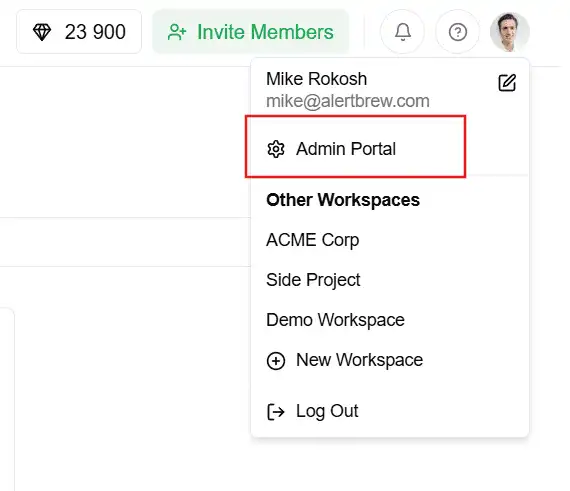 In your AlertBrew workspace, navigate to the admin portal by clicking on your profile icon in the top-right corner and selecting "Admin portal."
2. Find the Pipedrive Integration Page
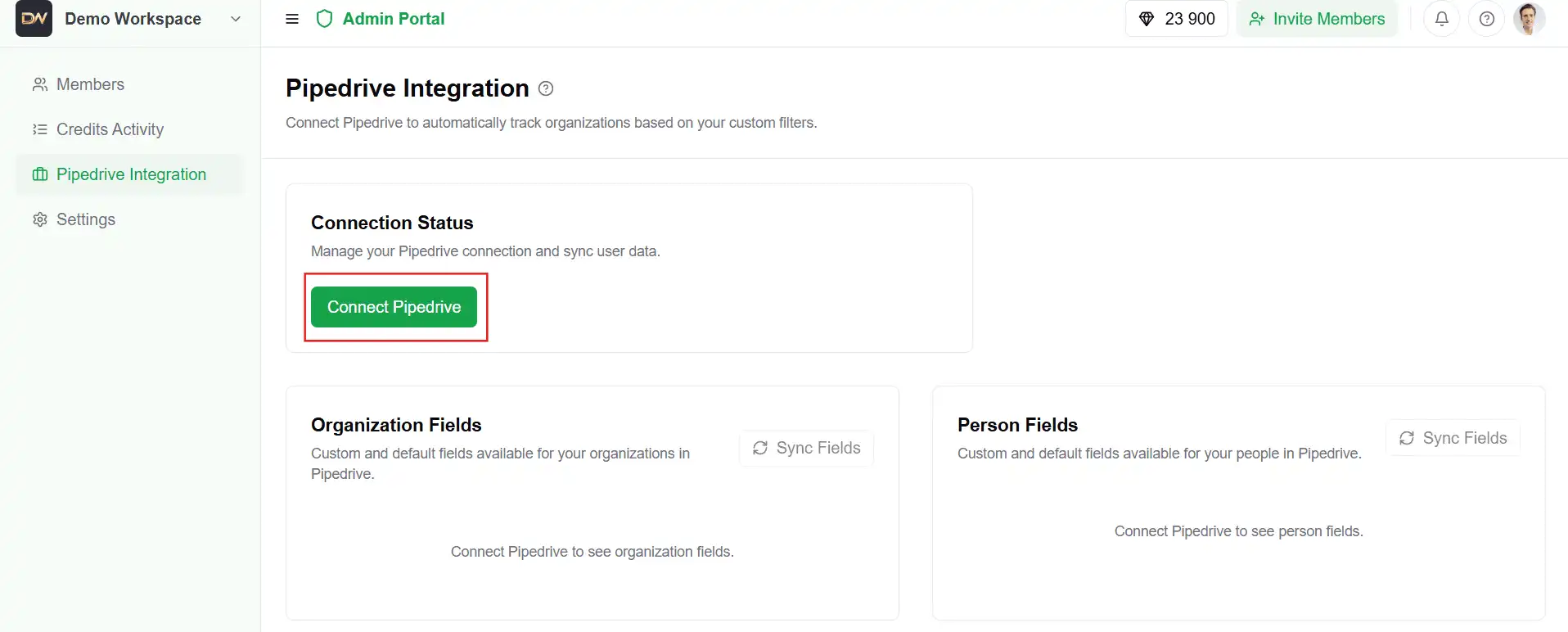
Once you are in the admin portal, click on "Pipedrive" in the sidebar navigation.
3. Start the Connection
Click the "Connect Pipedrive" button. You will be redirected to the Pipedrive website to authorize the connection.
 4. Authorize in Pipedrive
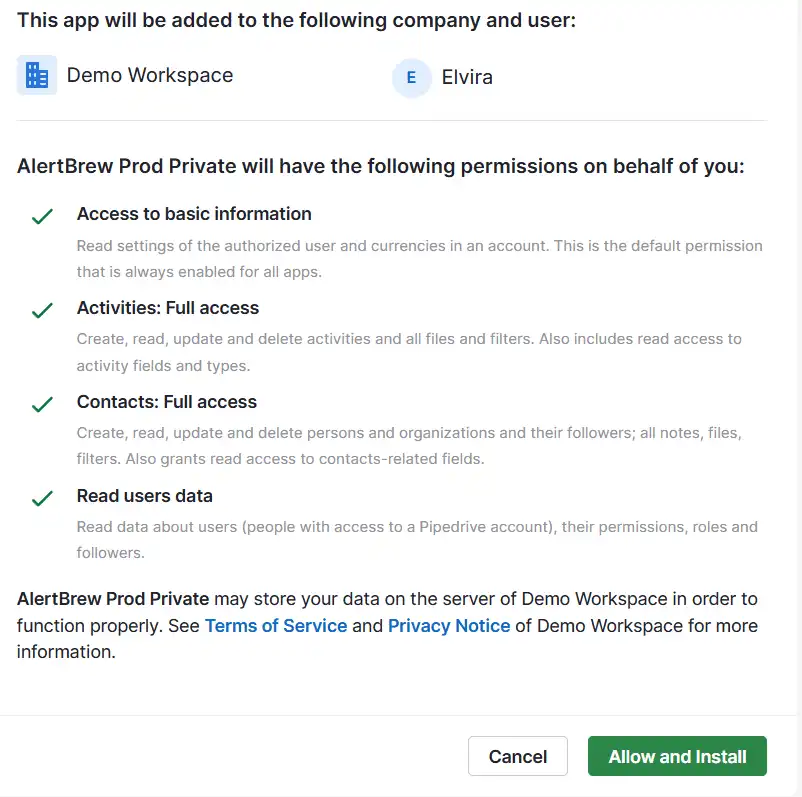
You will be prompted to log into your Pipedrive account if you aren't already. Once logged in, Pipedrive will ask you to grant AlertBrew permission to access your data. Review the permissions and click the "Allow and Install" button.
 5. Confirm Connection
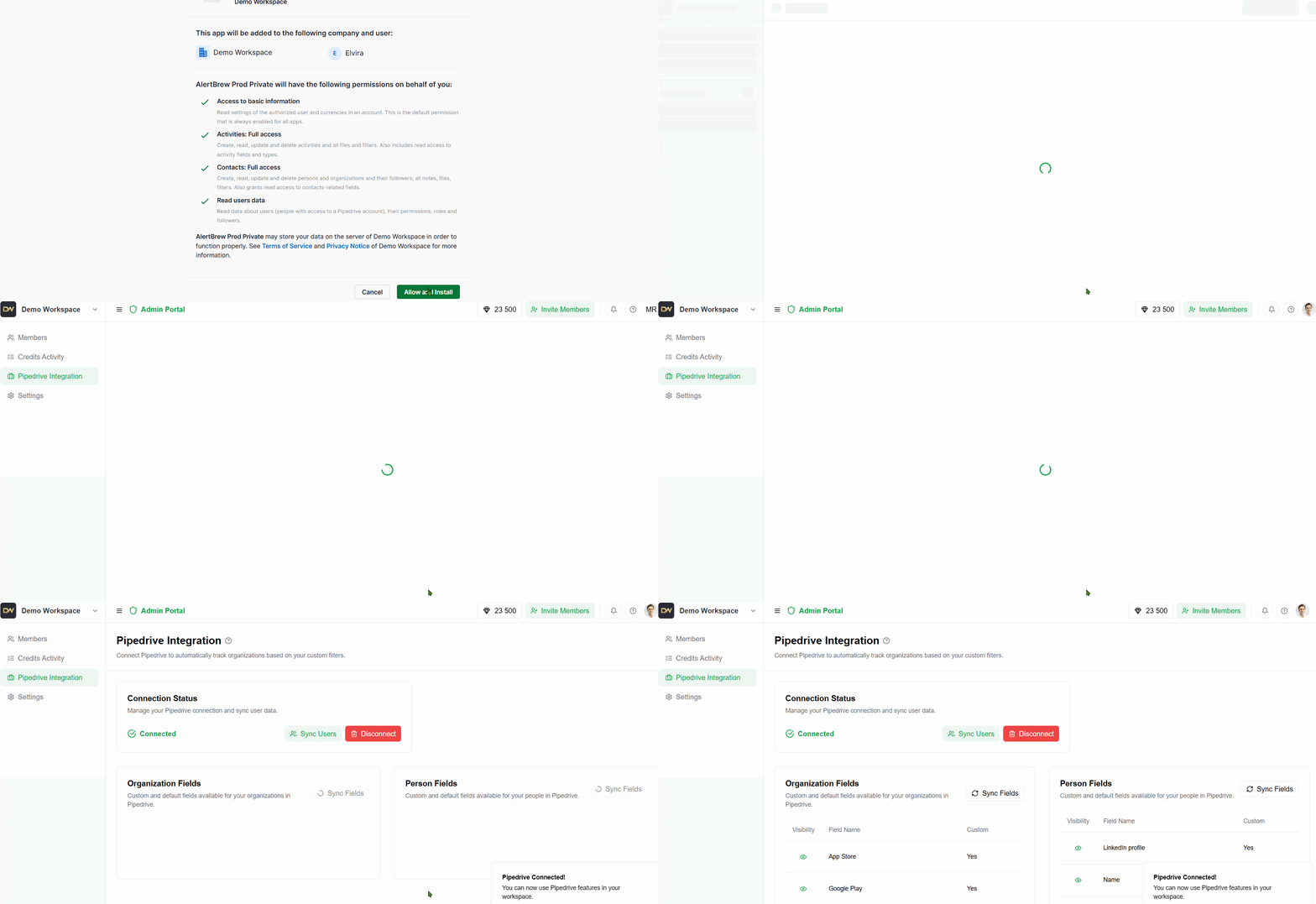
After authorizing, you will be automatically redirected back to your Pipedrive settings page in AlertBrew. You should now see a "Connected" status, confirming that the integration is active.
Note: Your Pipedrive account is now connected! The next step is to create a Pipedrive Alert Group to start monitoring your organizations or people based on your Pipedrive filters.