
How to Configure the Search Schedule

The schedule determines how often AlertBrew's AI agent will search the web for your condition. Choosing the right frequency is key to getting timely information without using unnecessary credits.
1. Locate the Setting
You can set the schedule when you create a new alert or by editing an existing one. The "Schedule" setting is typically located right below the main "Alert Condition" field.
 2. Choose Your Frequency
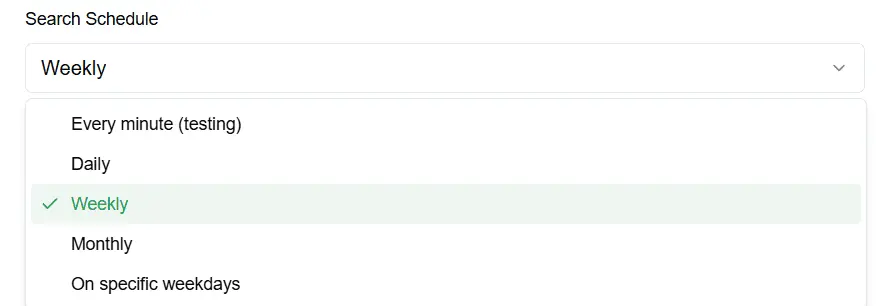
Click the dropdown menu to see the available options. Here’s a guide to help you choose the best one for your needs:
Hourly: Best for very time-sensitive conditions where a few hours can make a difference.
Use Case: Monitoring social media sentiment, tracking breaking news about a stock, or watching for immediate availability of a product.
Daily: The most common and recommended setting for general-purpose monitoring.
Use Case: Finding daily press releases, new job postings, competitor announcements, or daily news mentions.
Weekly: Ideal for less urgent monitoring or for tracking sources that update on a weekly basis.
Use Case: Following weekly industry newsletters, tracking new blog posts from a competitor who publishes weekly, or monitoring for weekly government reports.
Monthly: Suitable for long-term tracking and trend analysis where immediate notification is not critical.
Use Case: Compiling a monthly report on new academic papers in a specific field or tracking monthly market analysis reports.
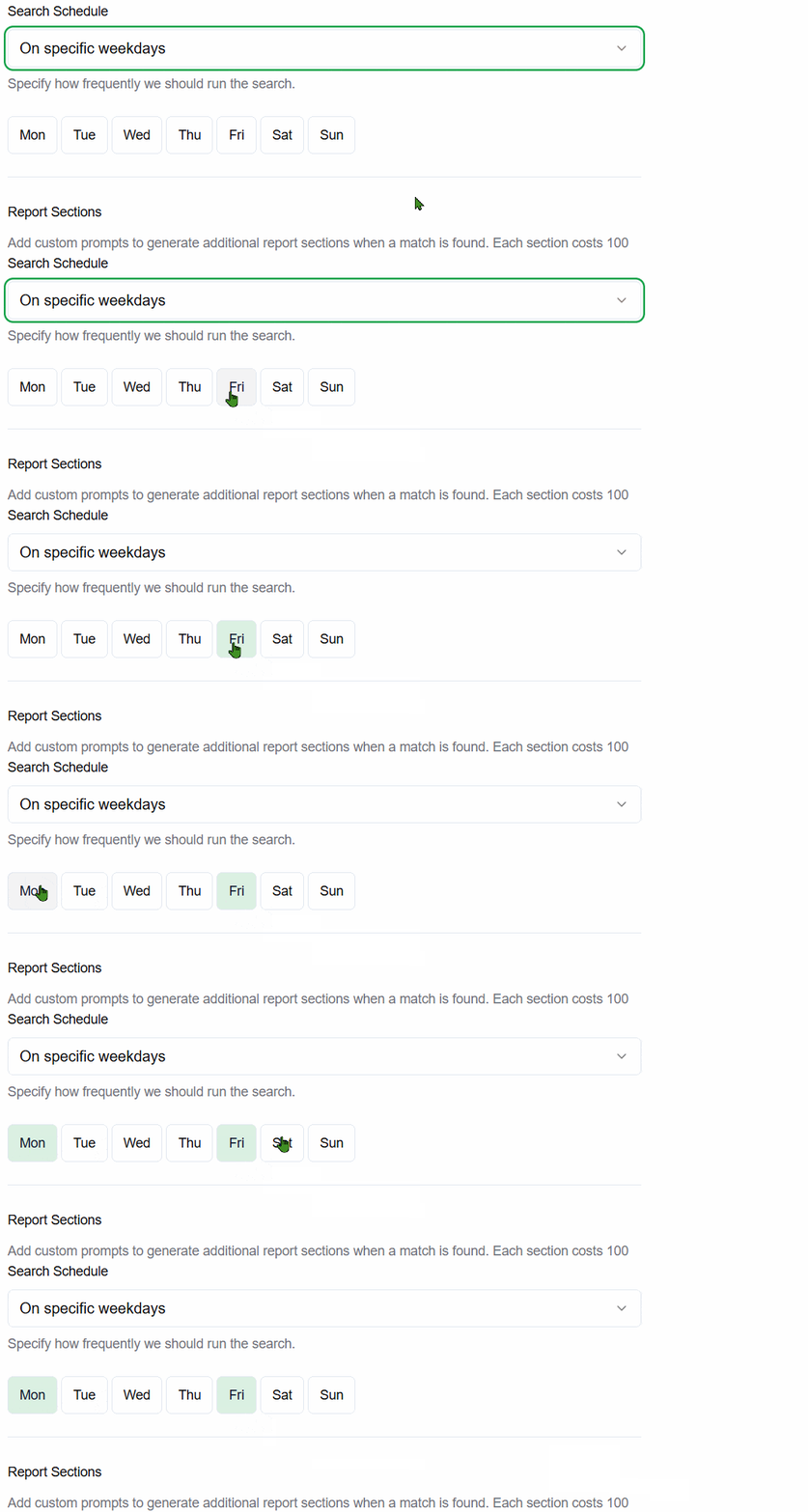
On Specific Weekdays: This gives you granular control to run searches only on the days you choose.
Use Case: Monitoring for business-related news only on weekdays, or checking for specific events that happen every Monday and Friday.
 A Note on Credits and Manual Searches
Credit Usage: Remember that each scheduled search consumes credits. An alert set to "Hourly" will use significantly more credits over a month than one set to "Daily". Choose the lowest frequency that still meets your needs.
Manual Search: You can trigger a search at any time by clicking the "Search Now" button on an alert. This is useful for on-demand checks without changing the alert's regular schedule.